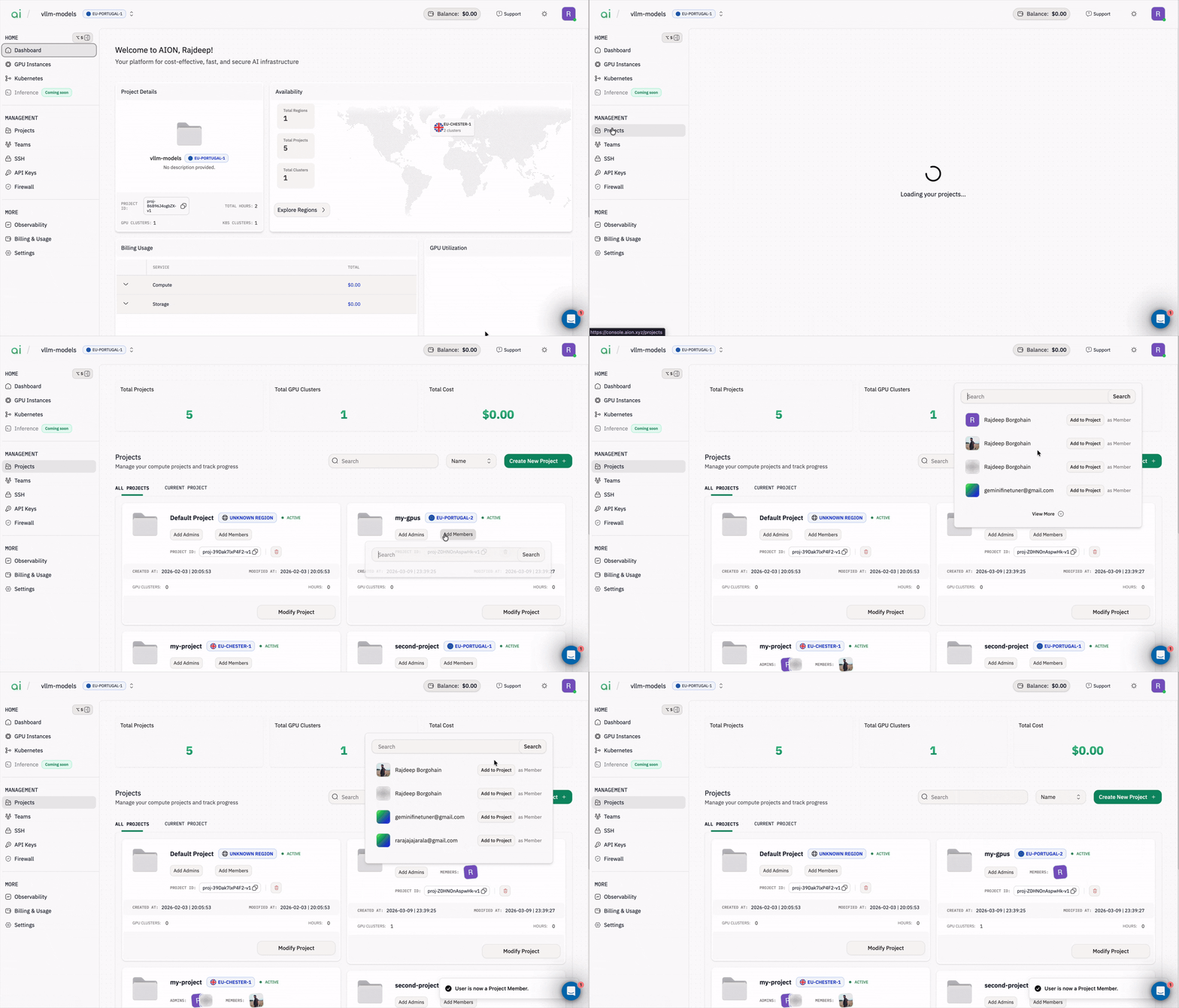
Roles and Scope
There are three roles that control what users can access and manage:Organization Admin: The top-level role. Organization Admins can manage organization membership (invite members, resend invites, view all members) and control project access by adding members and assigning Project Admins.Project Member: Has access to a specific project after being explicitly added by an admin. Project access is not automatic after joining the organization; users must be added to each project individually.Project Admin: Has administrative access within a specific project. Project Admins are assigned per project by an Organization Admin.
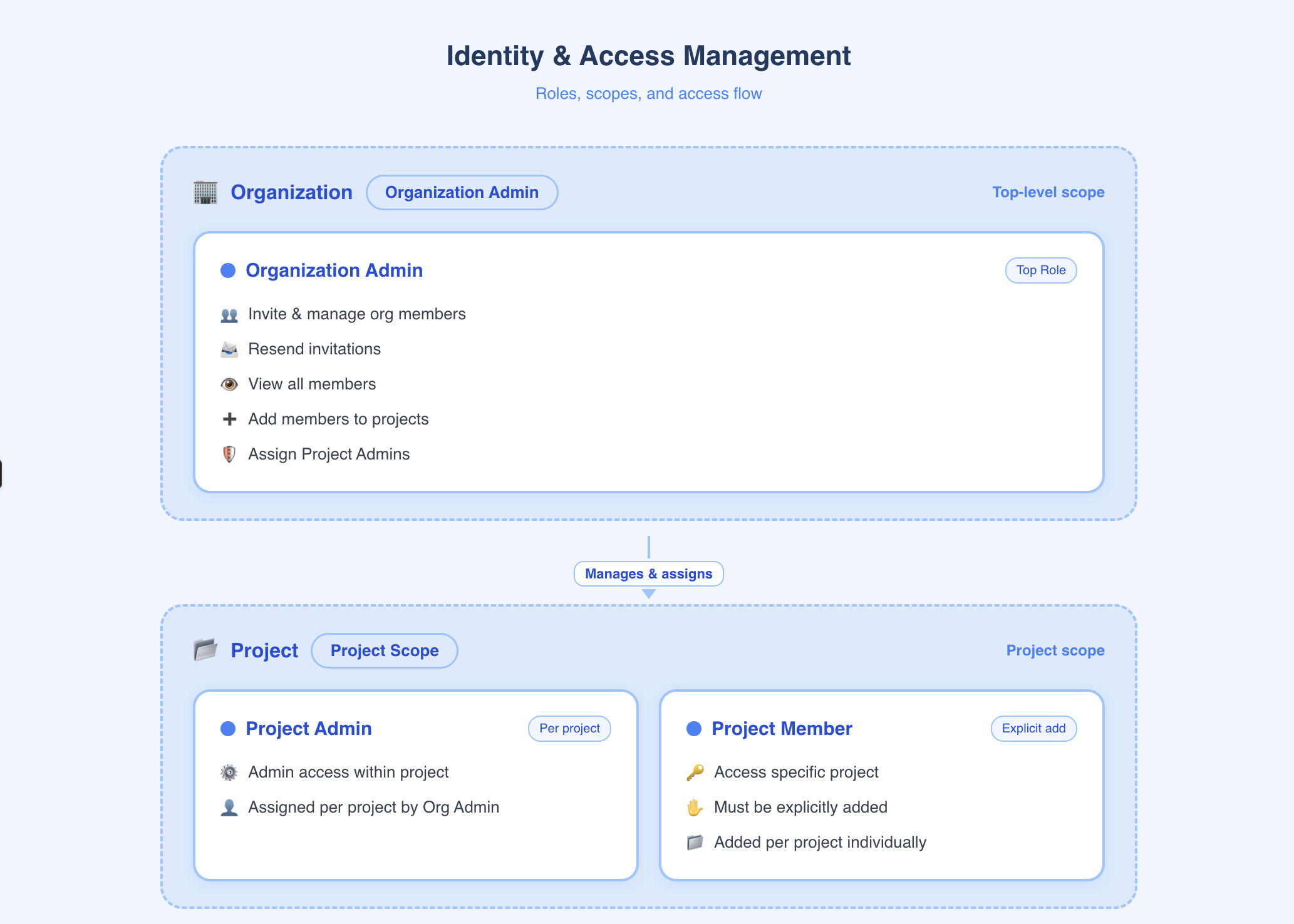
Invite Users to Your Organization
Use this flow to bring someone into your organization so they can later be assigned to projects.Send an Invite
- Go to
Management→Teams. - Enter the user’s email address in the invite field.
- Click
Send Invite.
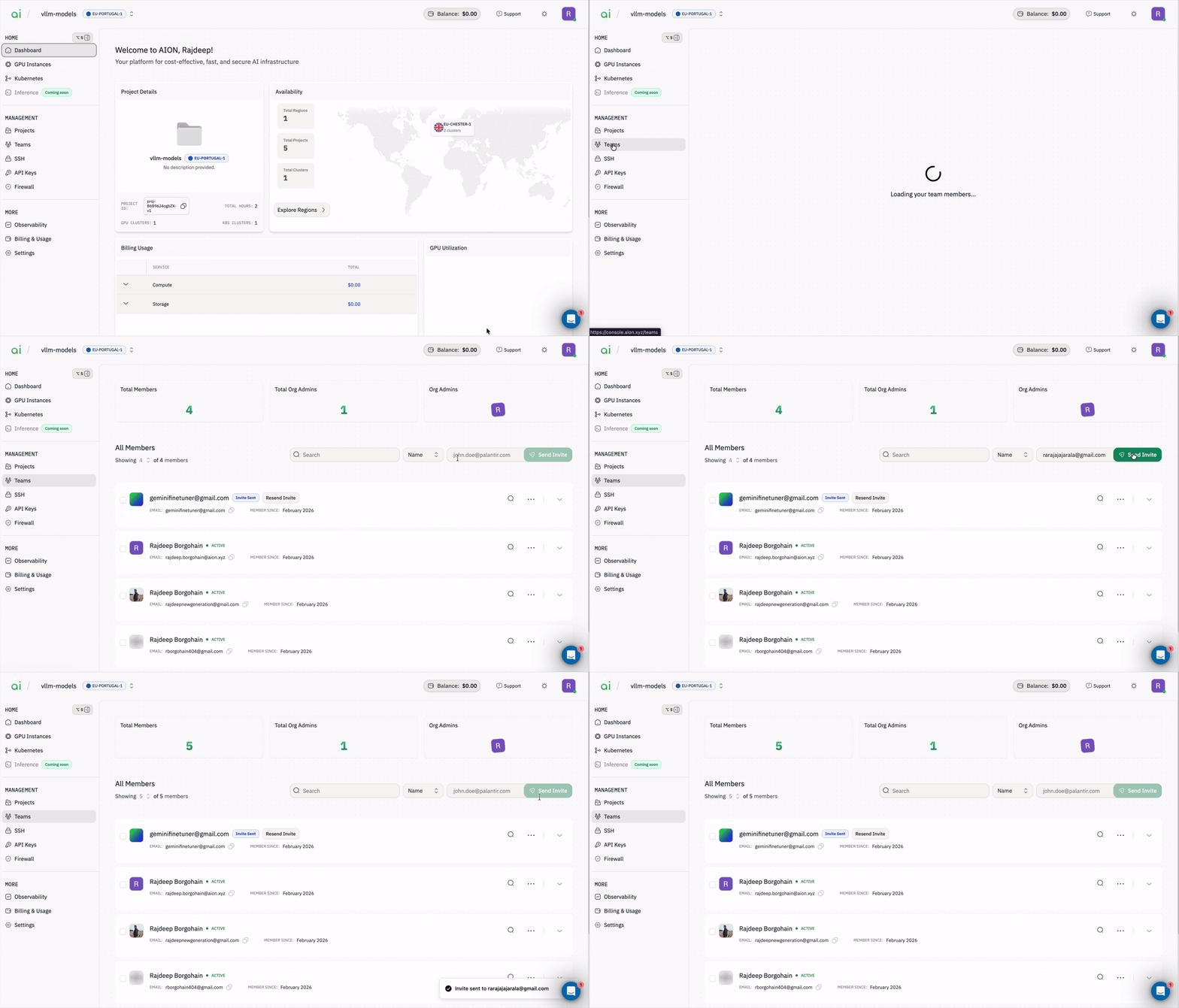
Resend an Invite
Use this when a user didn’t receive the invitation email or the invite link has expired.- Go to
Management→Teams. - Find the user with status Invite Sent.
- Click
Resend Invite.
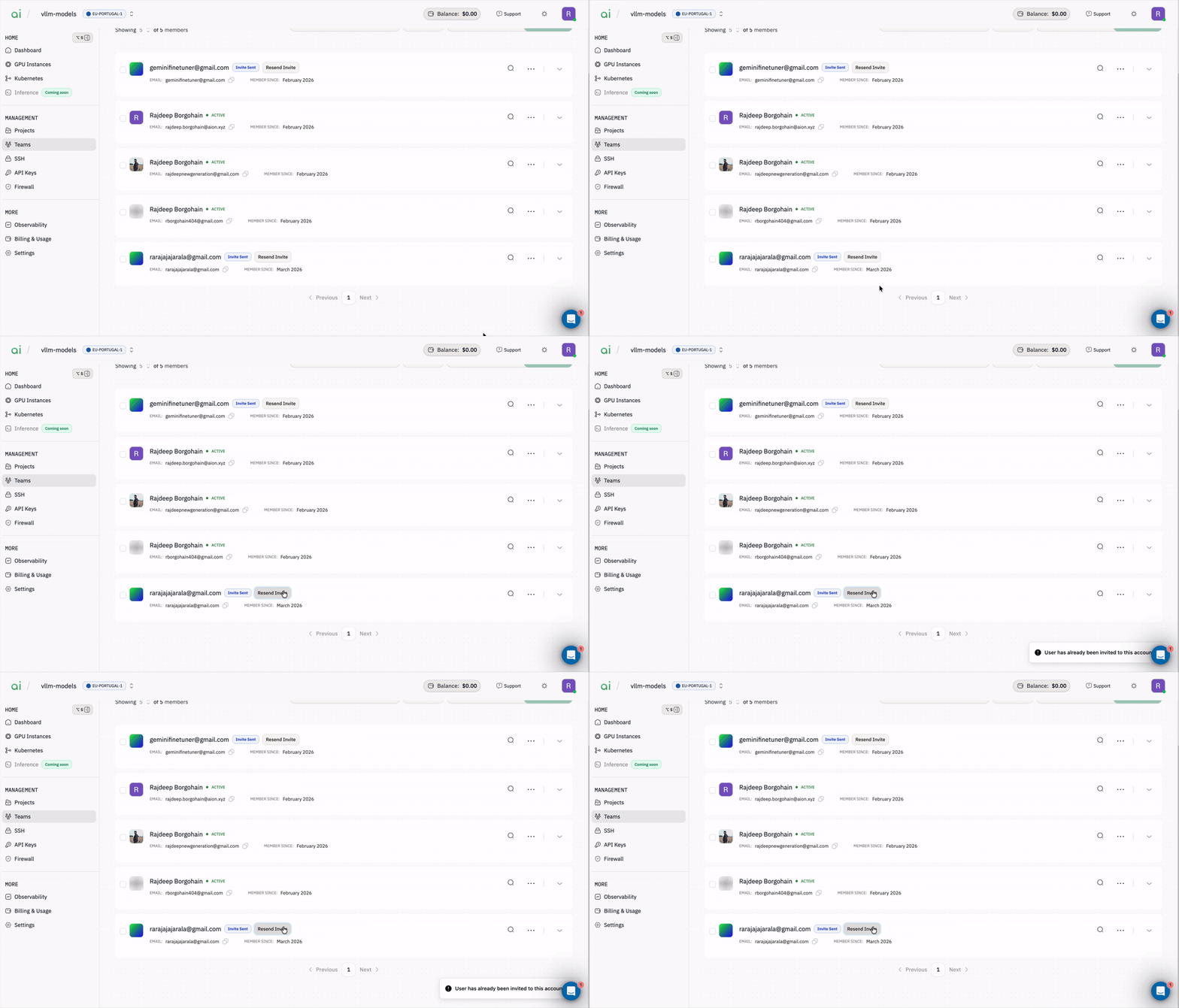
Manage Project Access
Before adding anyone to a project, make sure they have anActive account, users with a pending invite won’t appear in the search results.
Add a Project Admin
- Go to
Management → Projects. - Find the project card and click
Add Admins. - In the modal, search for the user.
- Click
Add to Projectnext to the correct user.
Project Admin for that project.
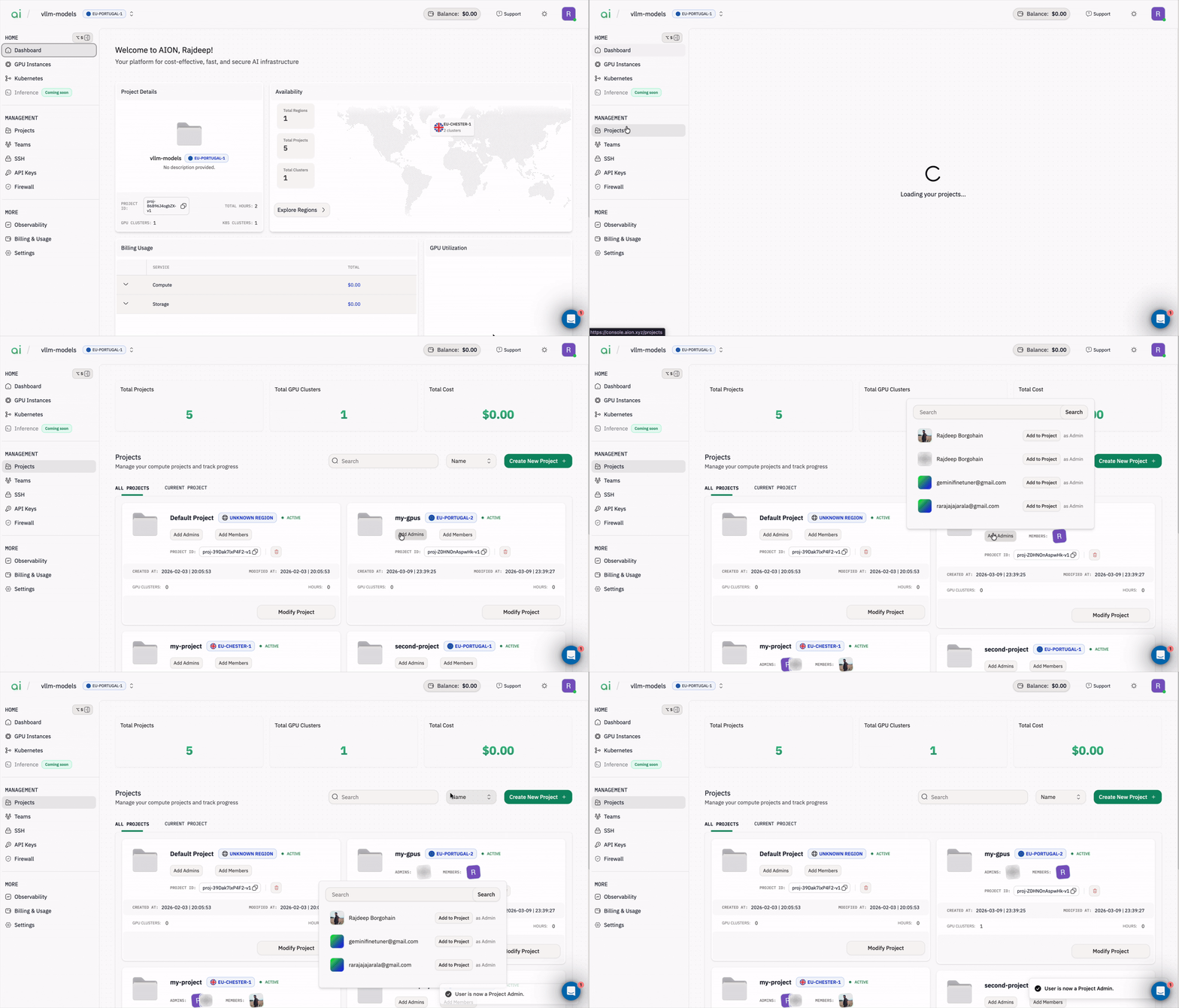
Add a Member to a Project
- Go to
Management→Projects. - Find the project card and click
Add Members. - In the modal, search for the user.
- Click
Add to Projectnext to the correct user.
Member of that project.