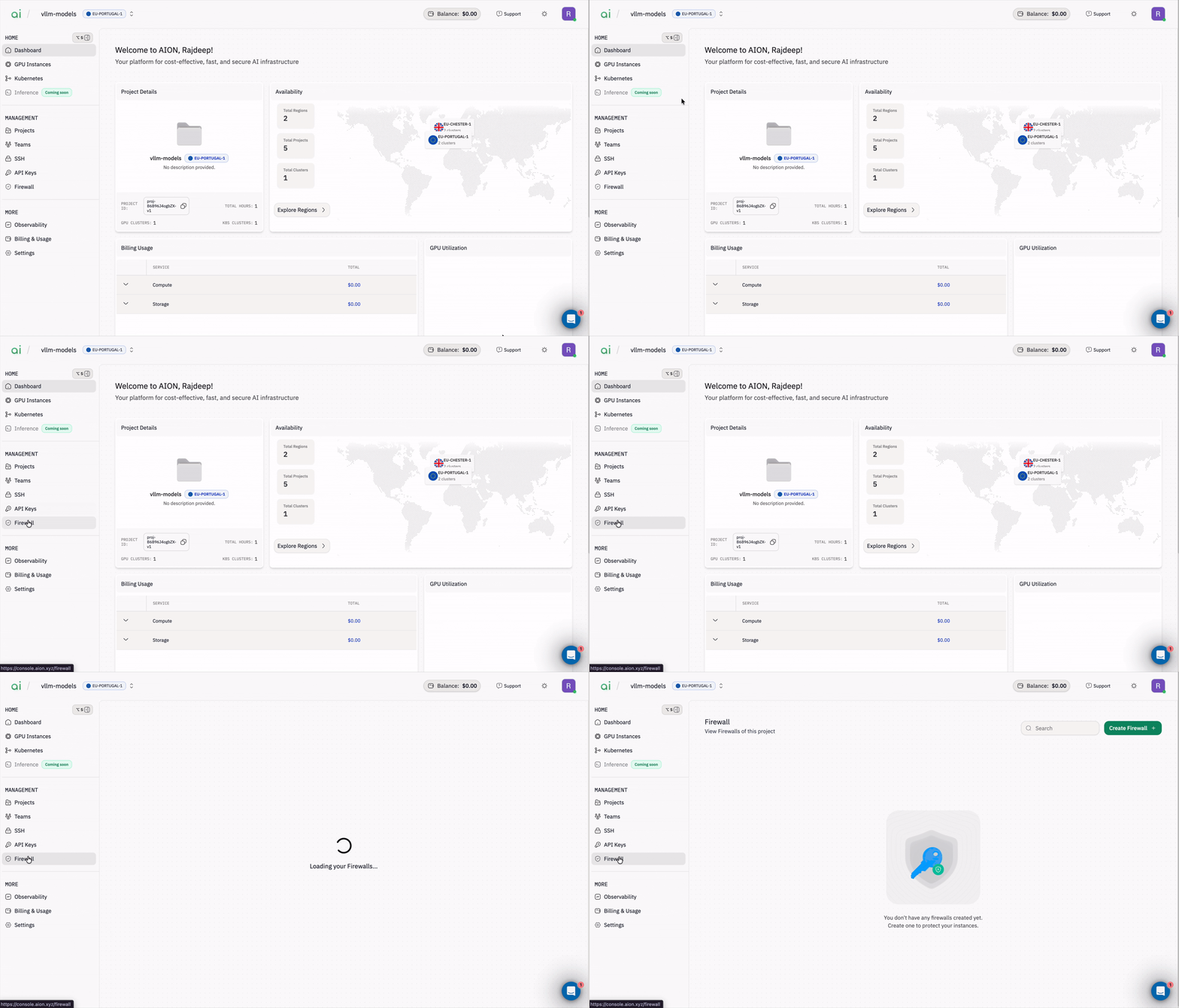
Step 1: Open the API Keys page
In the left sidebar, navigate toManagement → API Keys. API keys let you authenticate programmatic requests to AION services.
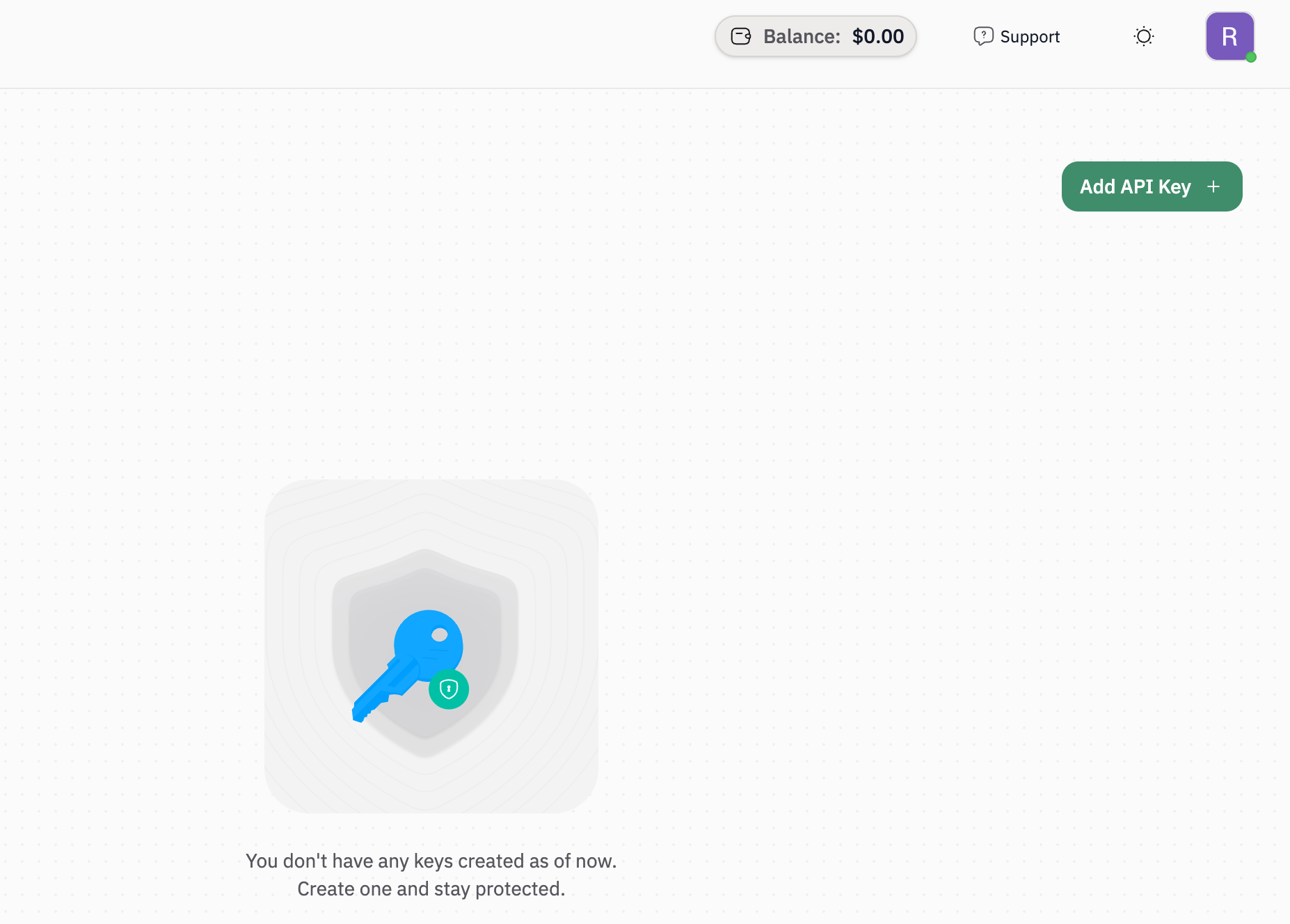
Step 2: Start adding a new API key
Click the greenAdd API Key + button (top-right).
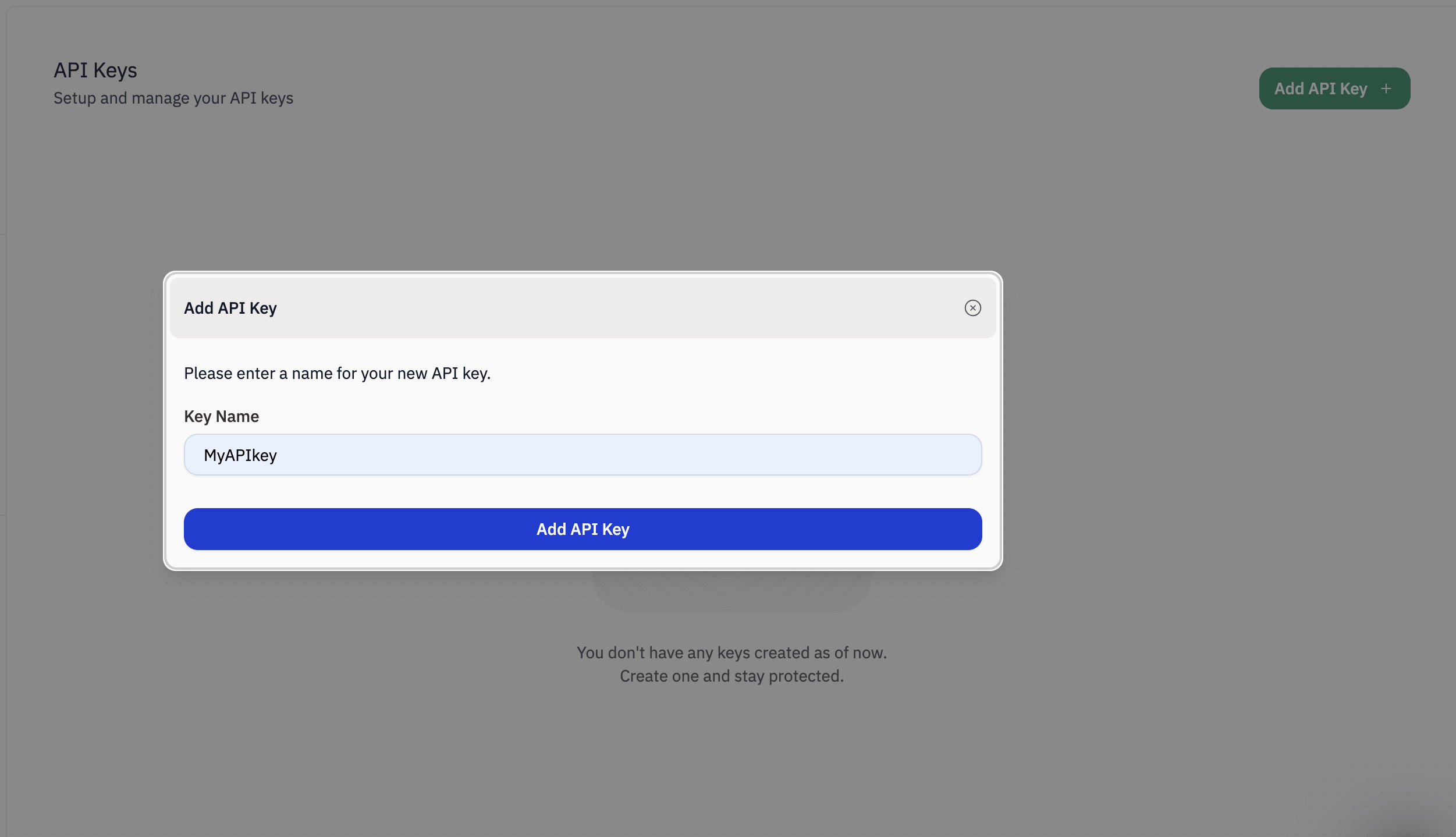
Step 3: Name and create the key
In theAdd API Key dialog:
- Enter a recognizable
Key Name(example:MyAPIkeyorprod-ci-key). - Click
Add API Key.
Step 4: Copy the API key (you can only view it once)
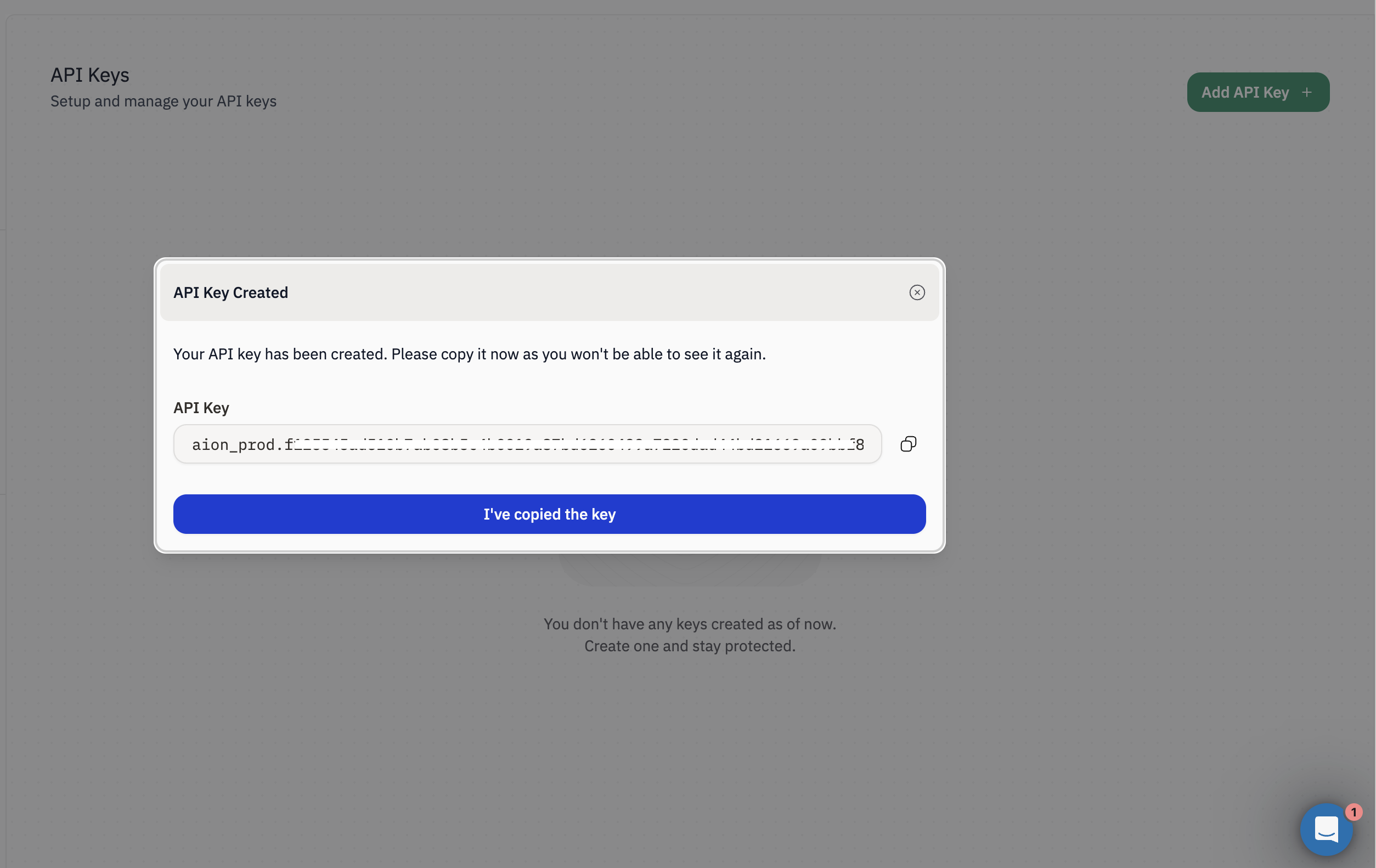
After creation, you’ll see theAPI Key Created dialog with your new key displayed.
- Click the copy icon to copy the full API key.
- Click
I've copied the keyto close the dialog.
Important: You won’t be able to see this API key again after closing the dialog.
Store it securely (for example, in a password manager or a secrets manager).
Step 5: Verify the key is added
Back on the API Keys page, your key appears in the list with:NameStatus(example:Active)Created AtAPI Key(partially masked)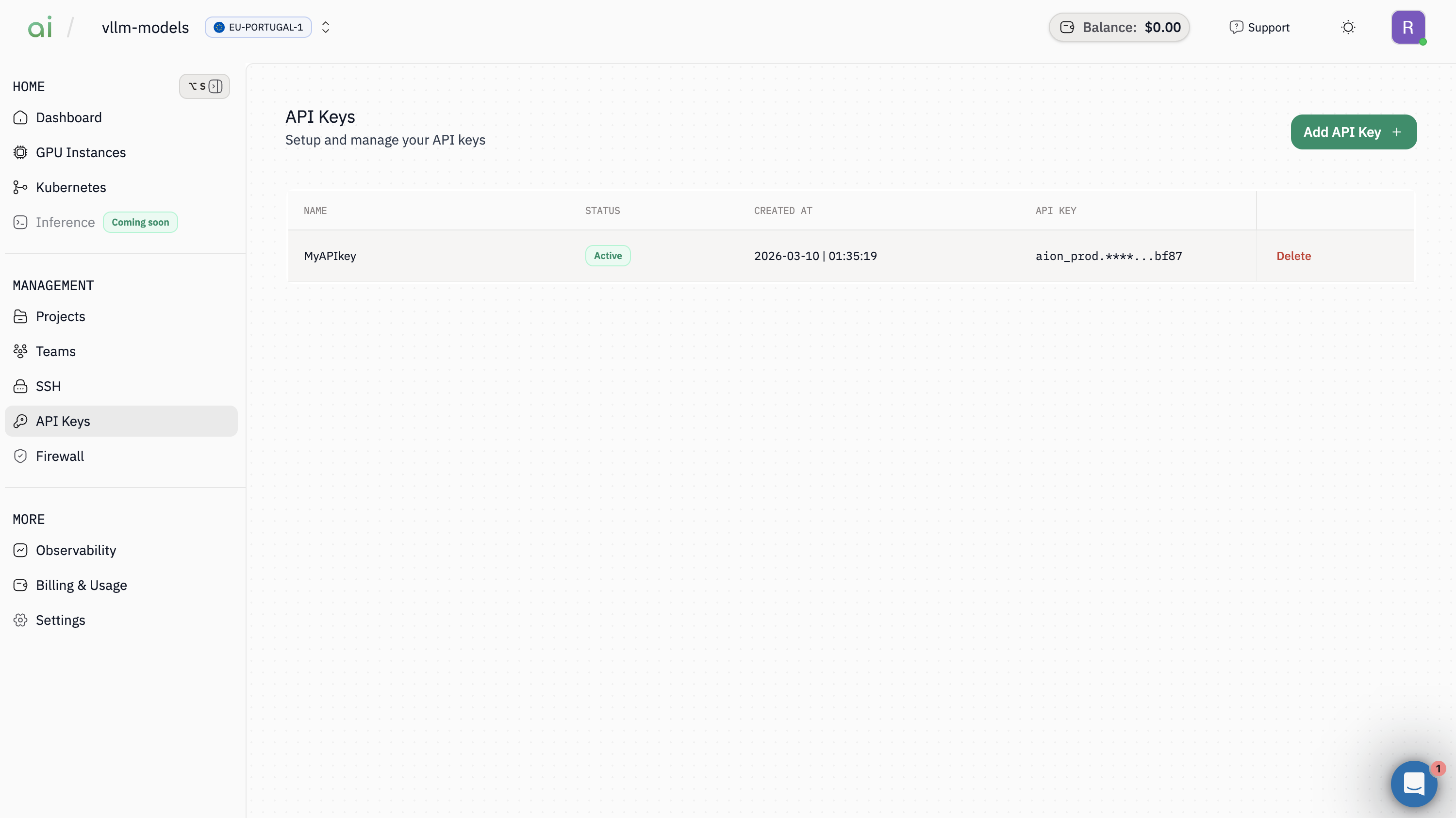
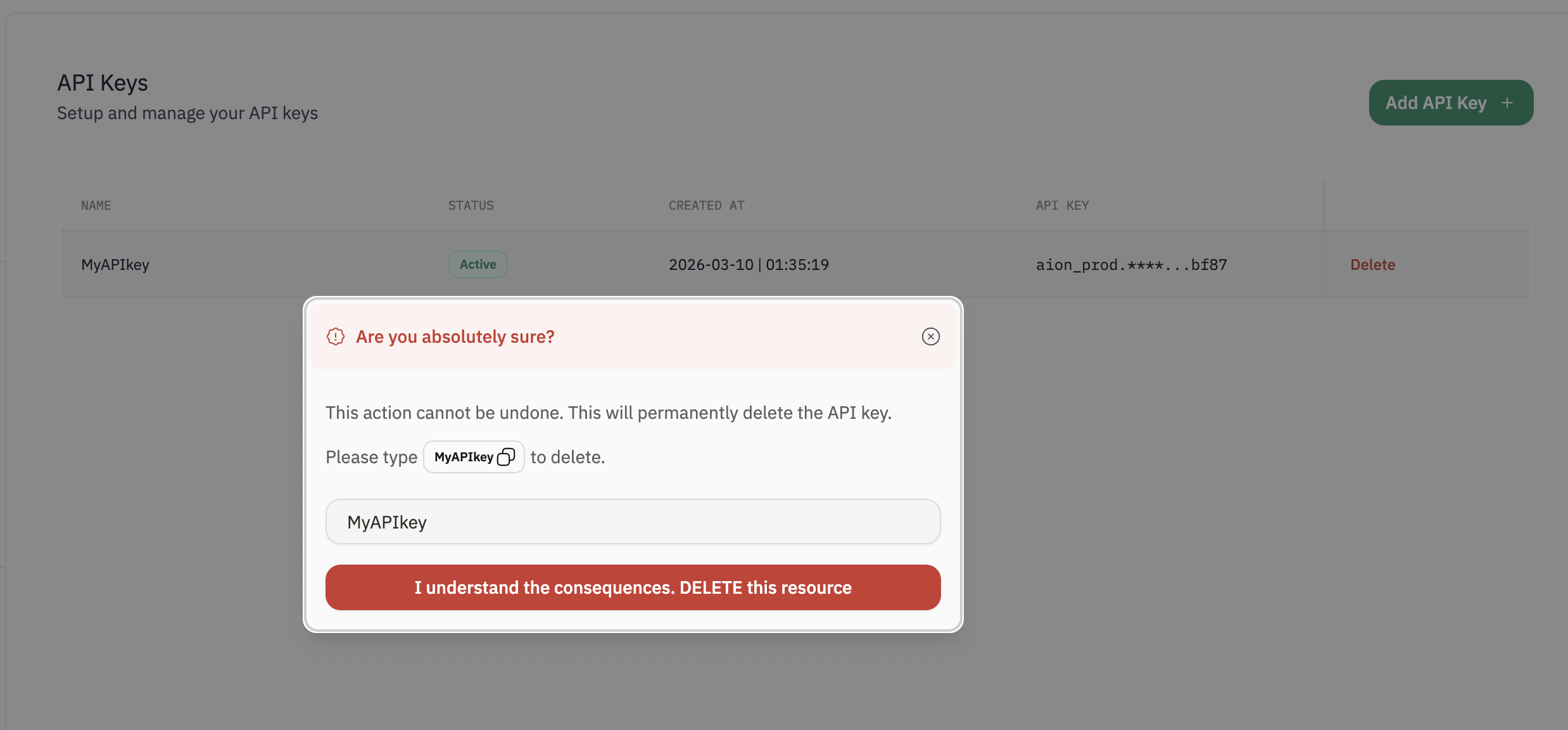
Optional: Delete an API key
Warning: Deleting an API key is permanent and cannot be undone. Any services using this key will immediately lose access.
- In the API Keys list, click
Deleteon the key you want to remove. - In the confirmation dialog, type the exact key name shown.
- Click
I understand the consequences. DELETE this resource.