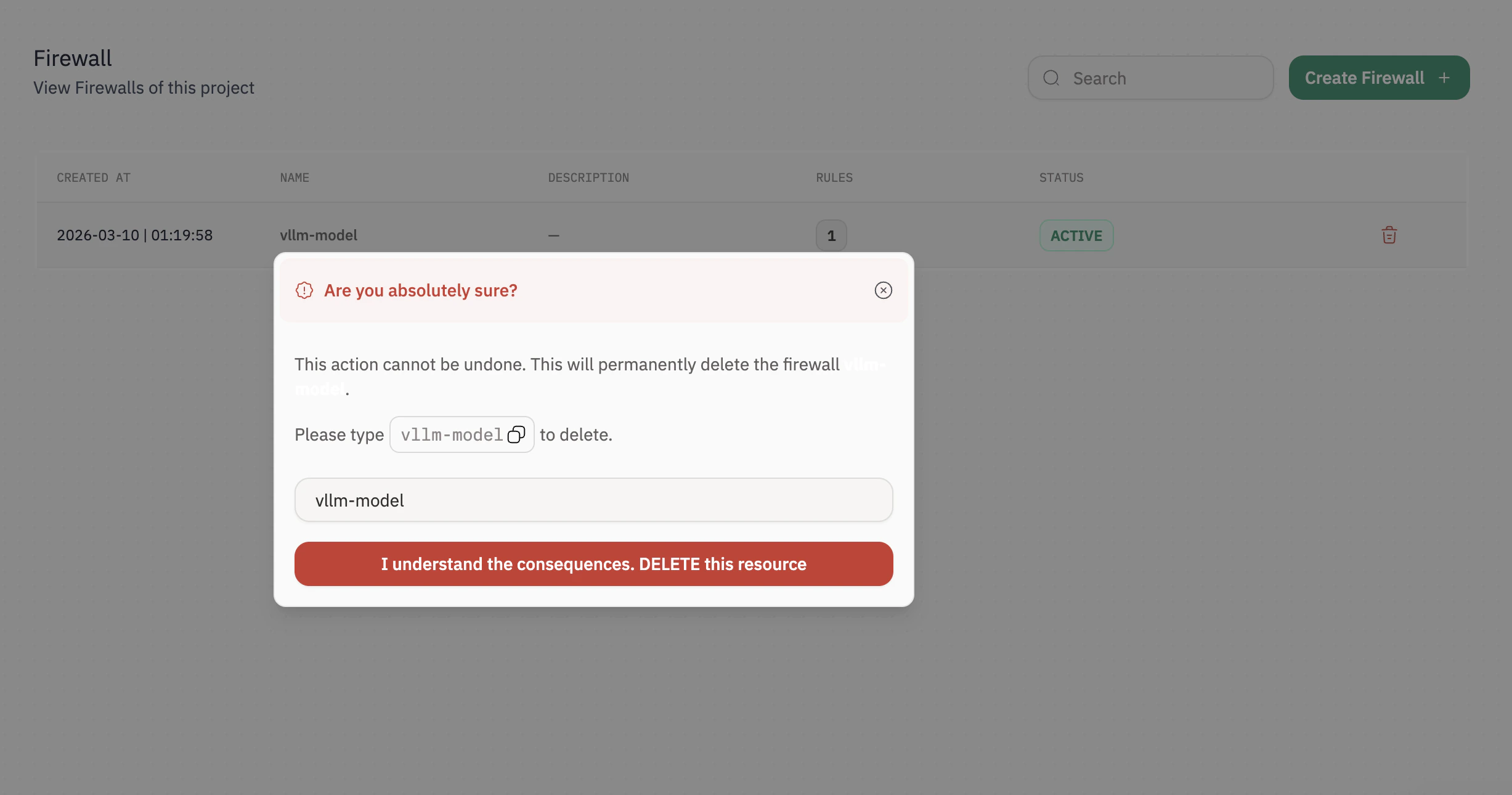
Step 1: Open the Firewall page
In the left sidebar, navigate toManagement → Firewall. Firewalls help protect your instances by controlling what traffic is allowed inbound (Ingress) and outbound (Egress).
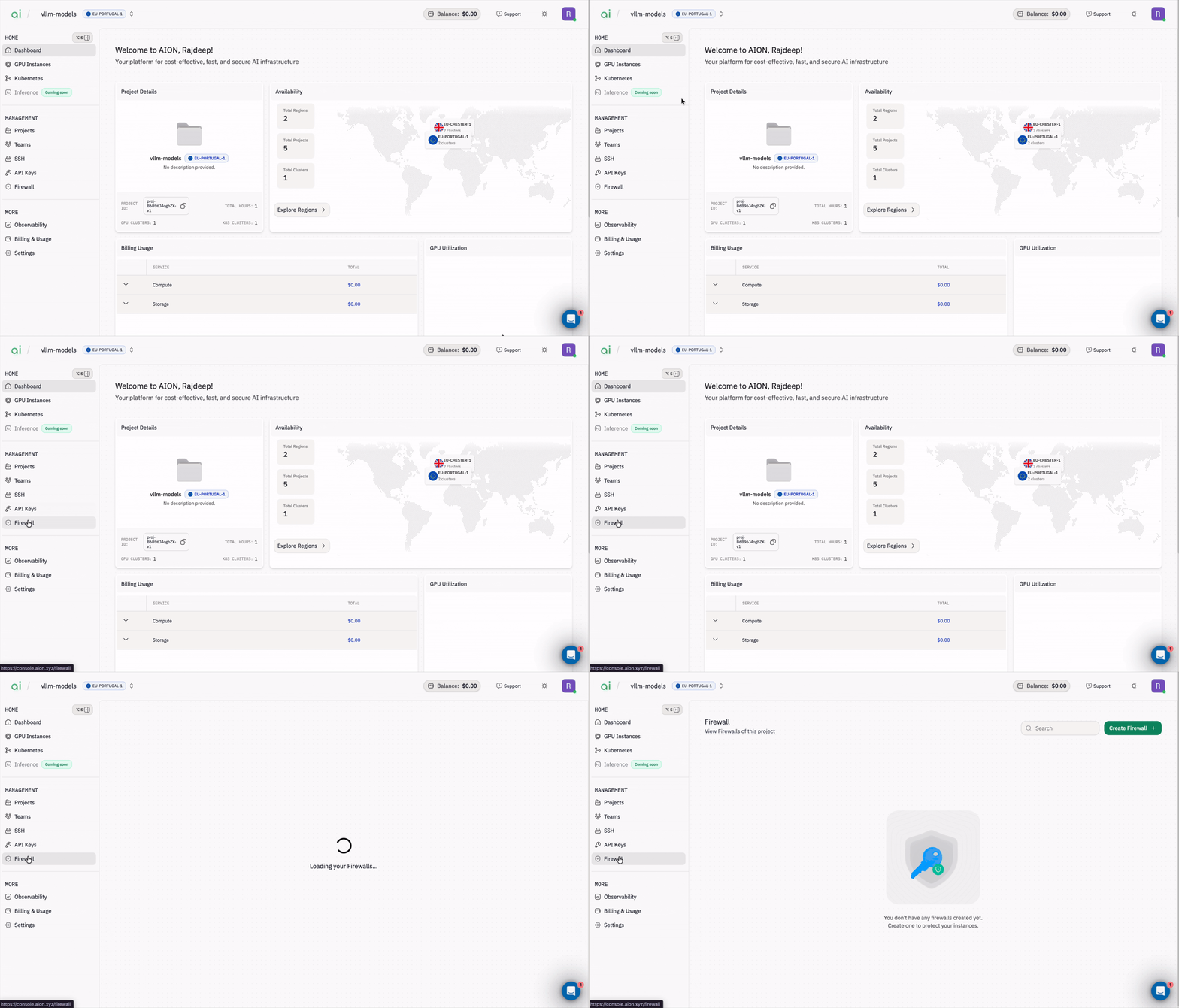
Step 2: Create a new Firewall
Click the greenCreate Firewall + button (top-right).
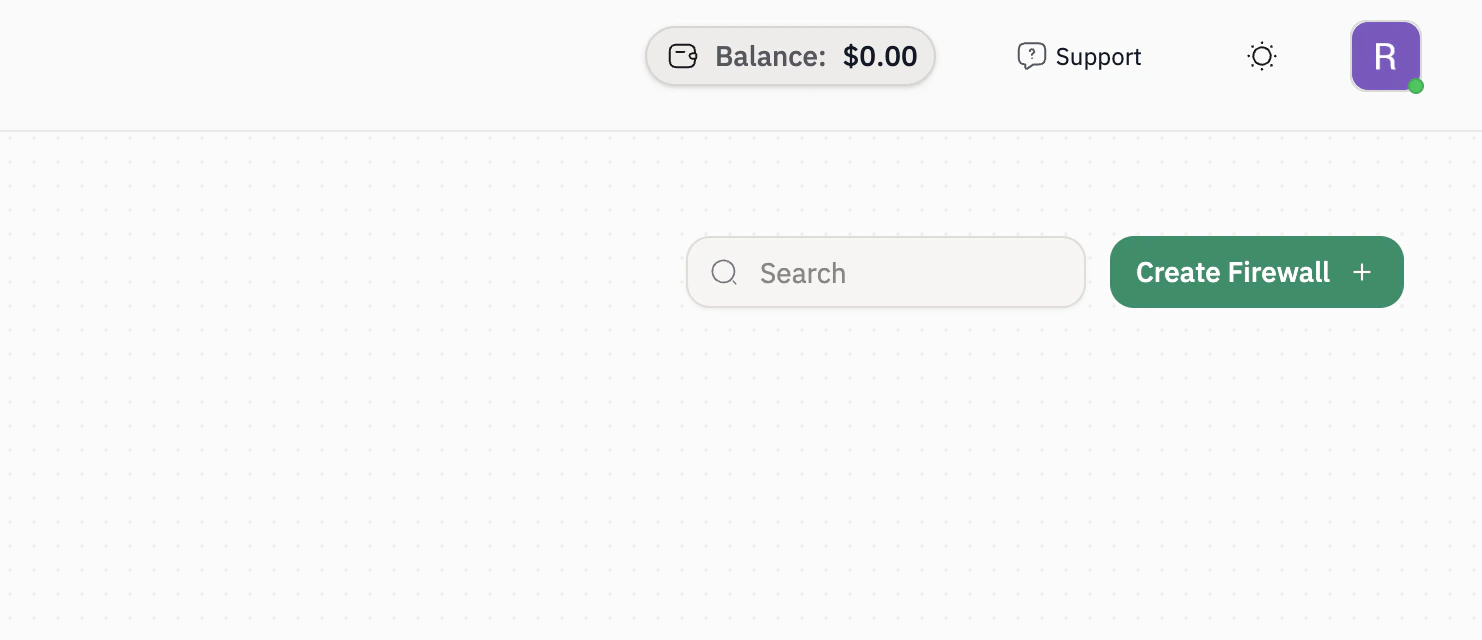
- Enter a
Firewall Name(example:myfirewall). - (Optional) Add a
Descriptionto document the purpose. - Click
Save Changes.
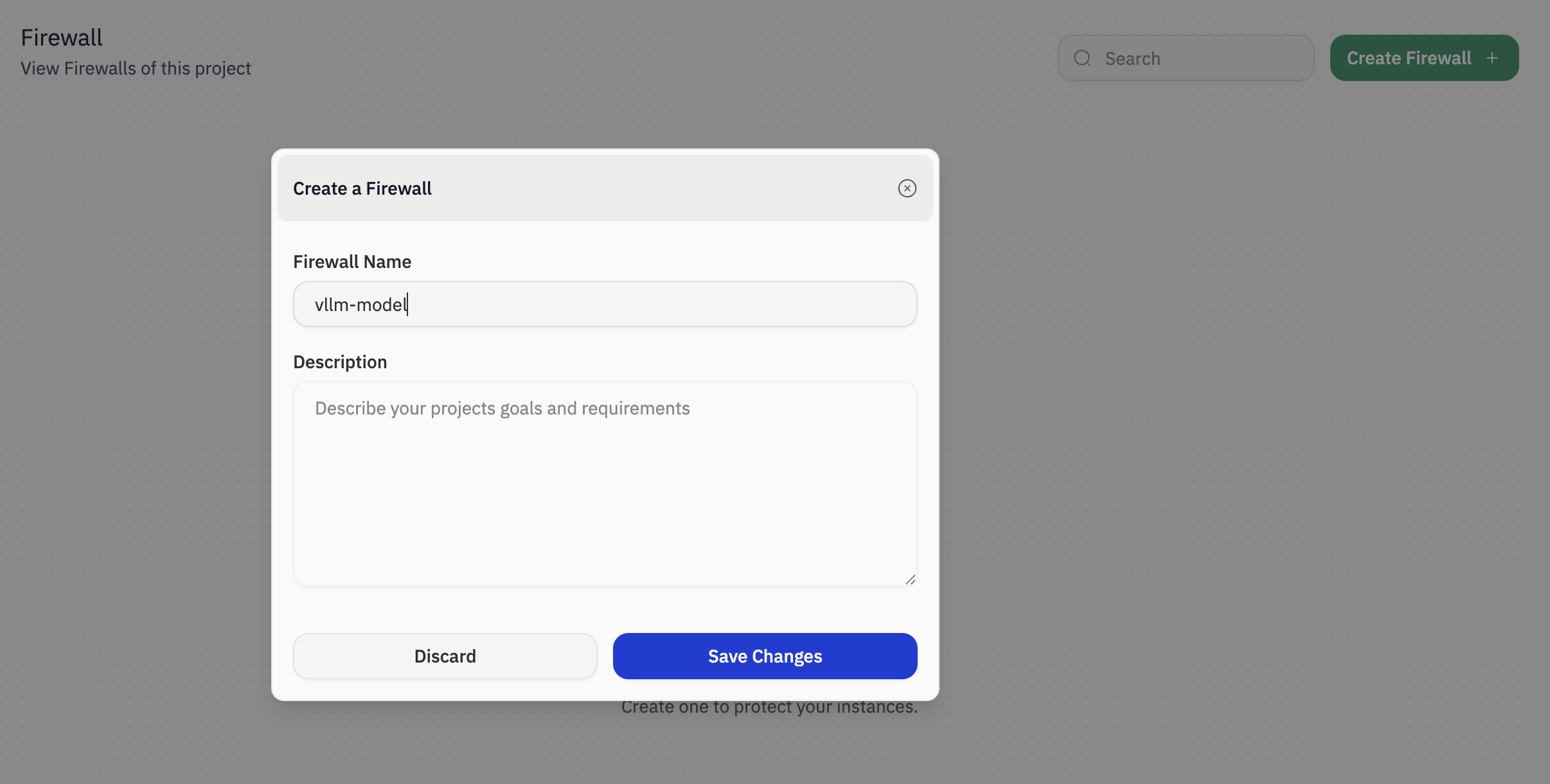
Step 3: Verify the Firewall is created
After saving, your firewall appears in the Firewall list with:Created AtNameDescriptionRulescountStatus
Step 4: Open the Firewall to manage rules
Click the firewall name from the list (example:myfirewall) to open its rules page.
Step 5: Add a Firewall Rule (Ingress or Egress)
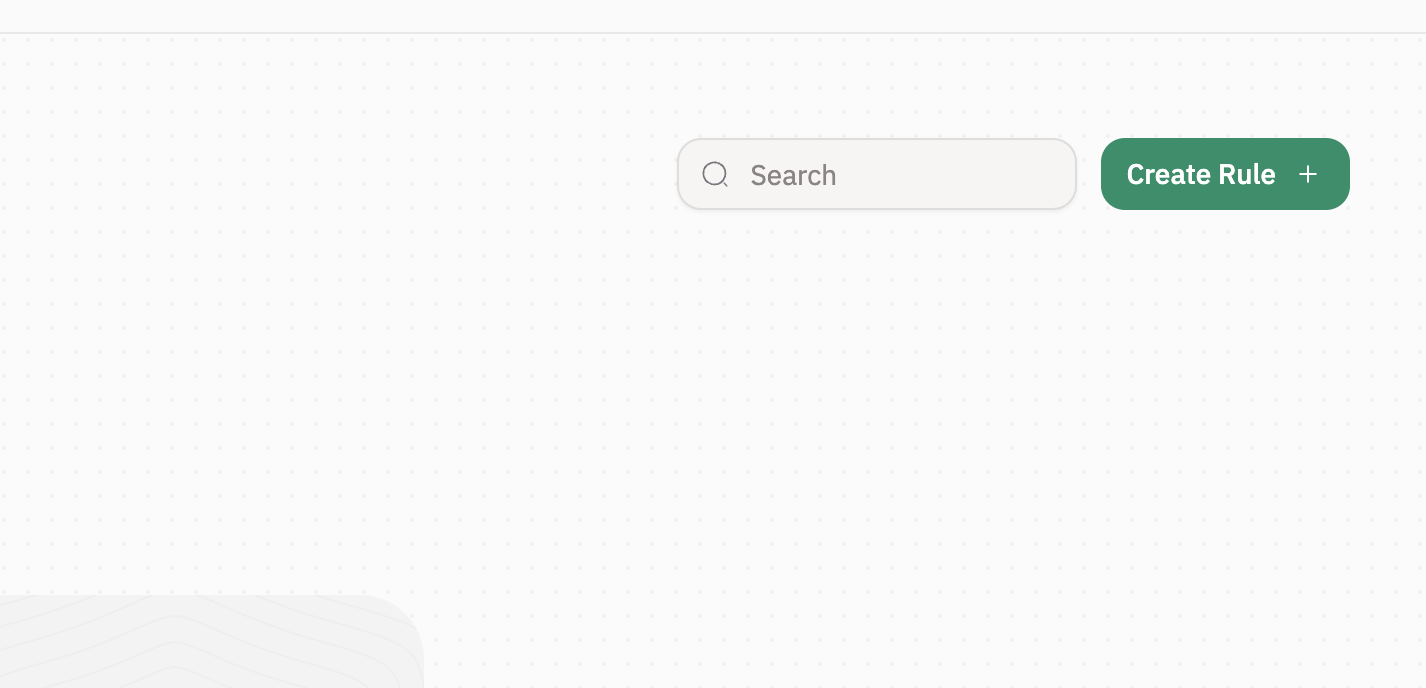
Click the greenCreate Rule + button.
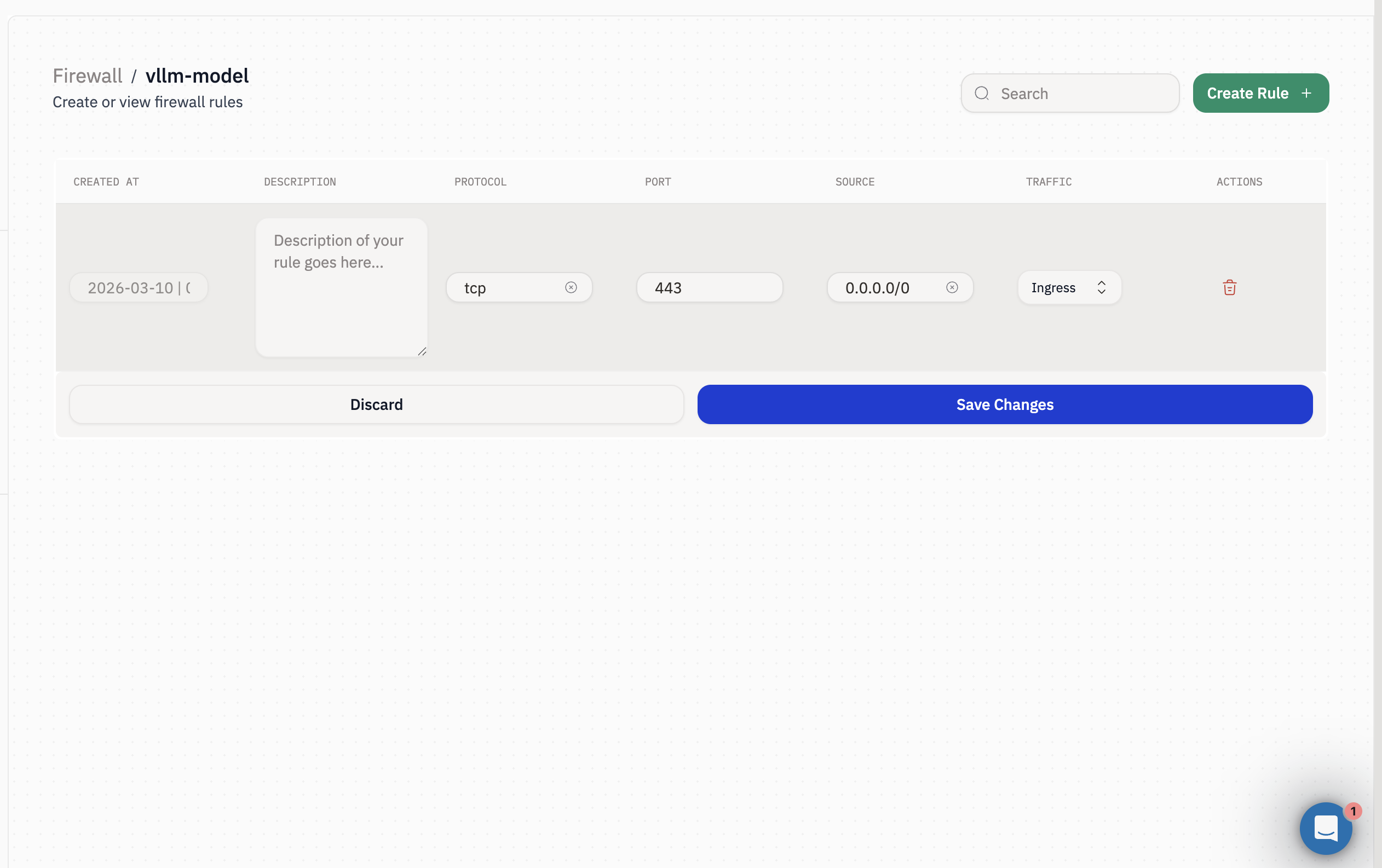
Description(optional): e.g., “Allow HTTPS”Protocol: e.g.,TCPPort: e.g.,443Source: CIDR range allowed (example:0.0.0.0/0for public internet, or a restricted range like203.0.113.10/32)Traffic: chooseIngress(incoming) orEgress(outgoing)
Save Changes to apply the rule.
Step 6: Confirm rules appear in the rules list
Once saved, rules show up in the table with:-
Protocol -
Port -
Source -
Traffic(Ingress/Egress)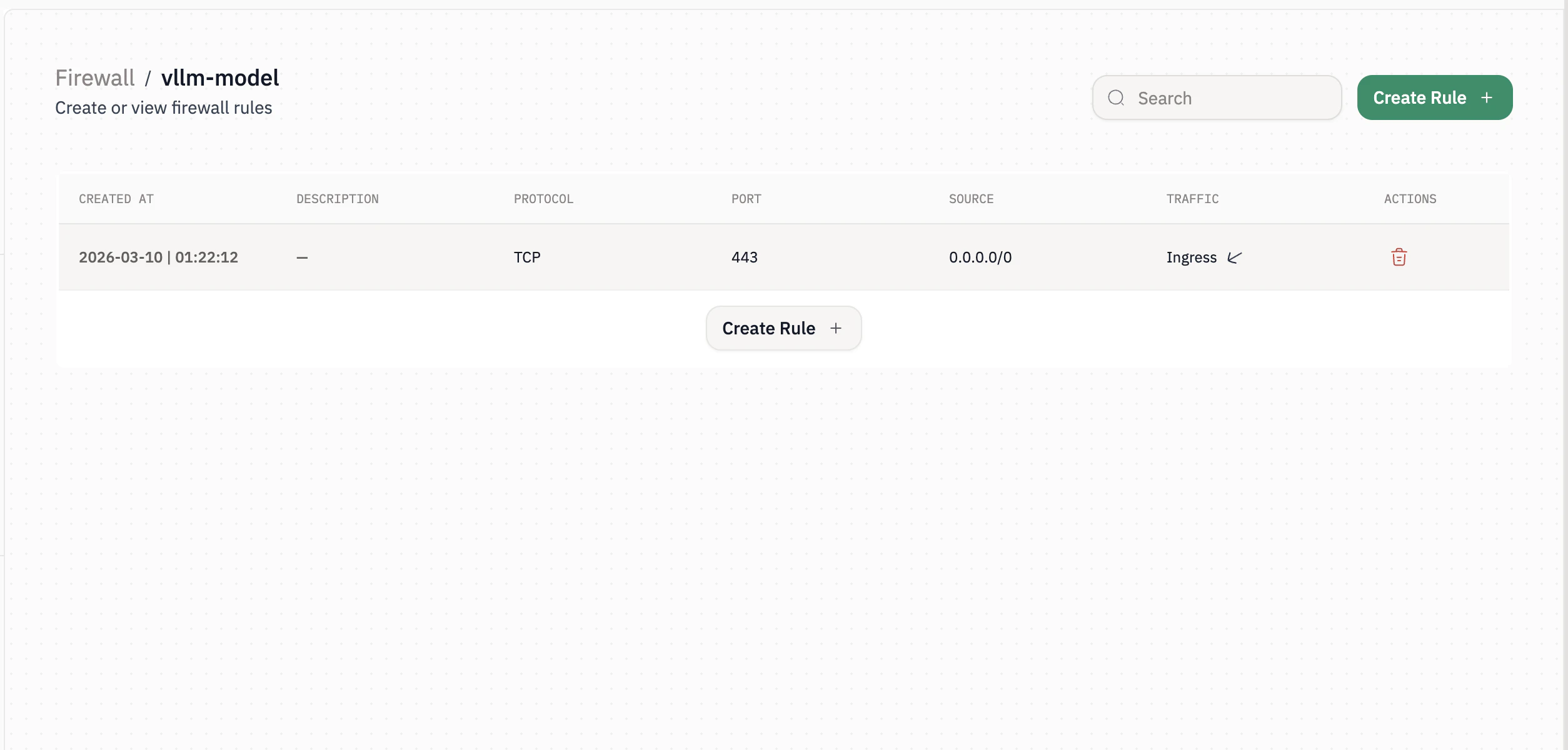
Optional: Delete a rule
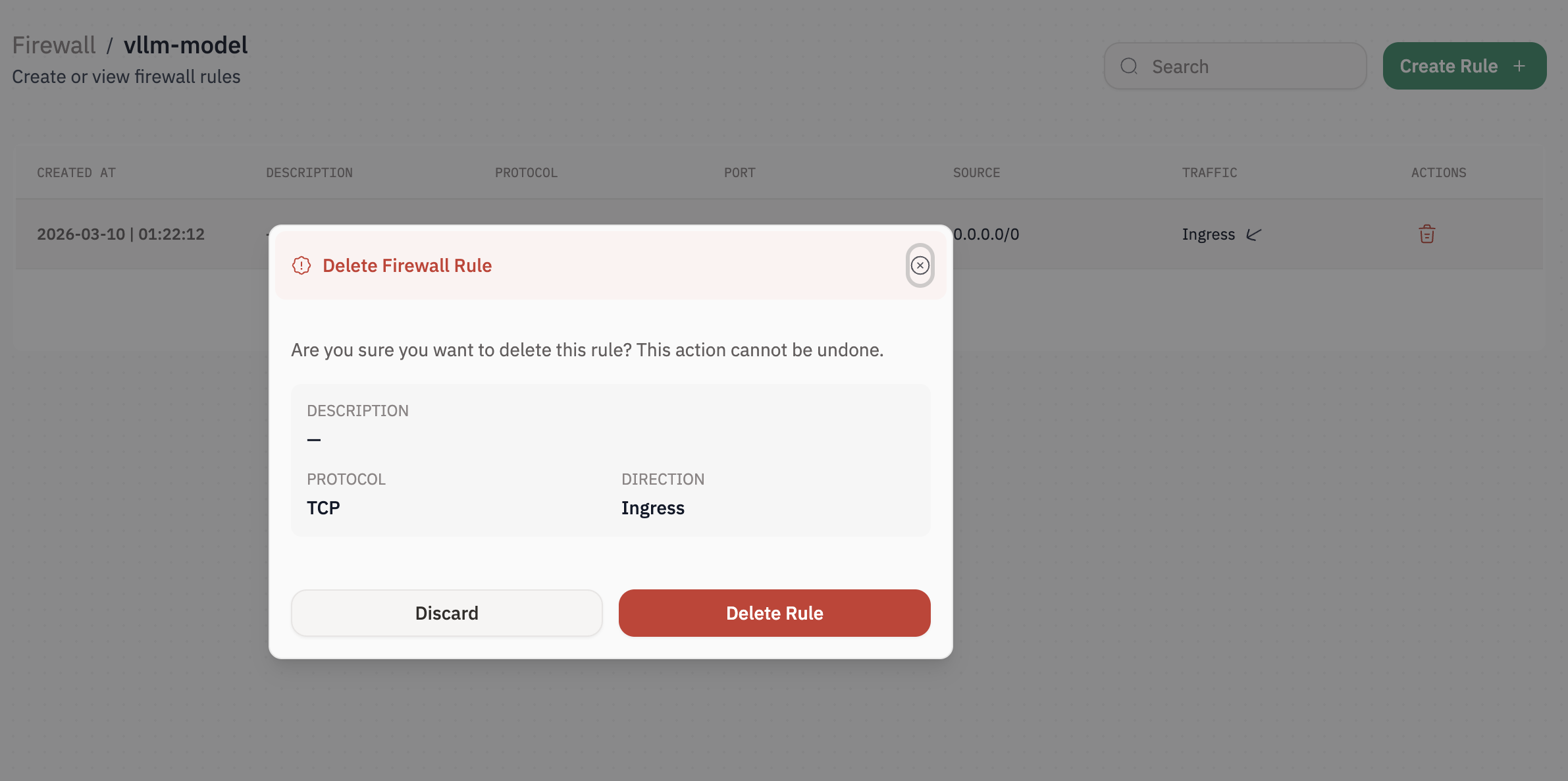
Warning: Deleting a rule is permanent and cannot be undone.
- In the firewall rules table, click the
Delete(trash) icon on the rule. - Confirm deletion when prompted.
Optional: Delete a firewall
Warning: Deleting a firewall removes all associated rules and can break access to running services.
- Go back to
Management → Firewall. - Click the
Delete(trash) icon on the firewall. - Confirm deletion when prompted.