> ## Documentation Index
> Fetch the complete documentation index at: https://docs.aion.xyz/llms.txt
> Use this file to discover all available pages before exploring further.
# Identity and Access Management (IAM)
> Manage organization members and control project access by inviting users, adding them to projects, and assigning project admins.
## Roles and Scope
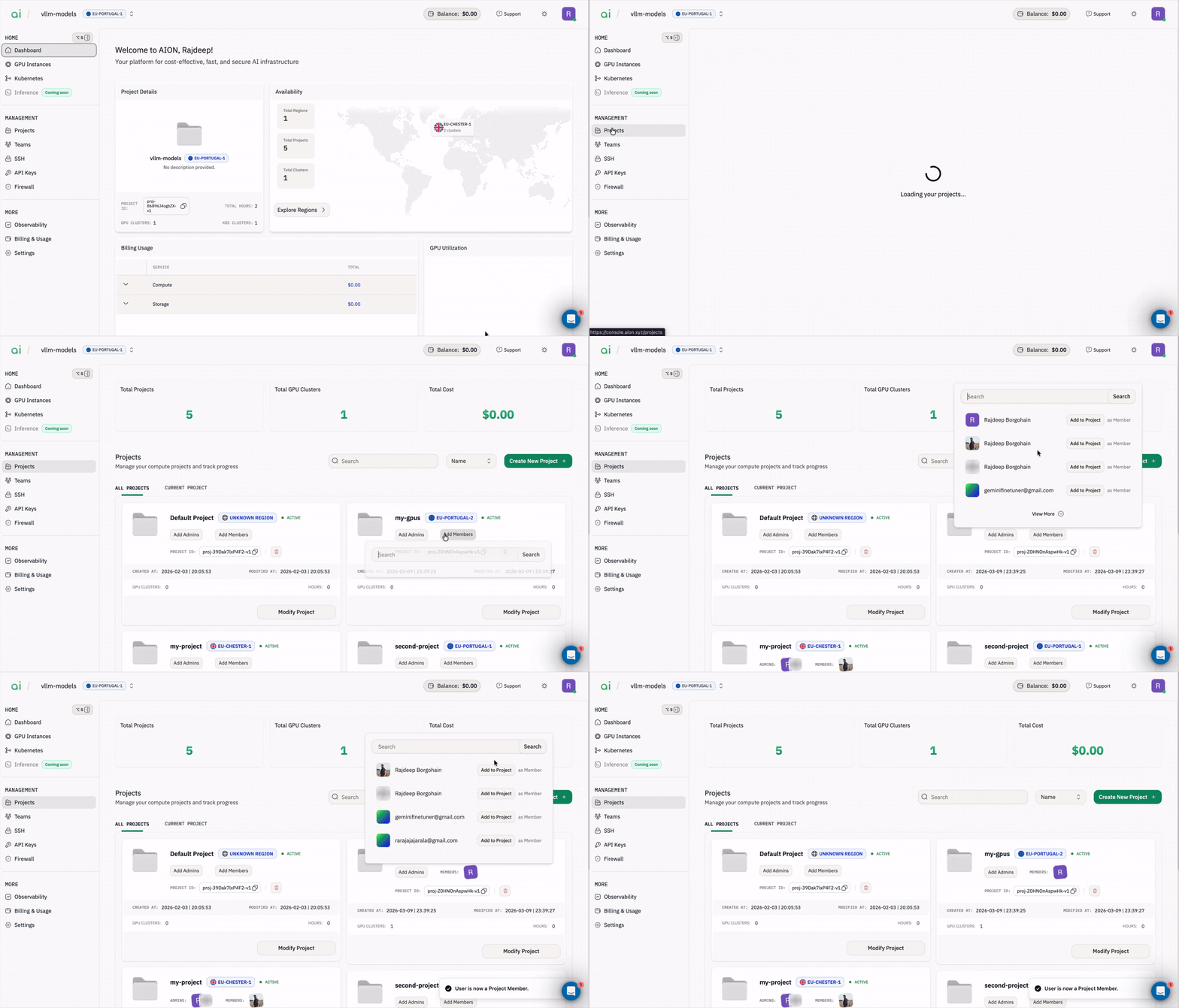
There are three roles that control what users can access and manage:
1. `Organization Admin`: The top-level role. Organization Admins can manage organization membership (invite members, resend invites, view all members) and control project access by adding members and assigning Project Admins.
2. `Project Member`: Has access to a specific project after being explicitly added by an admin. Project access is not automatic after joining the organization; users must be added to each project individually.
3. `Project Admin`: Has administrative access within a specific project. Project Admins are assigned per project by an Organization Admin.
 ## Invite Users to Your Organization
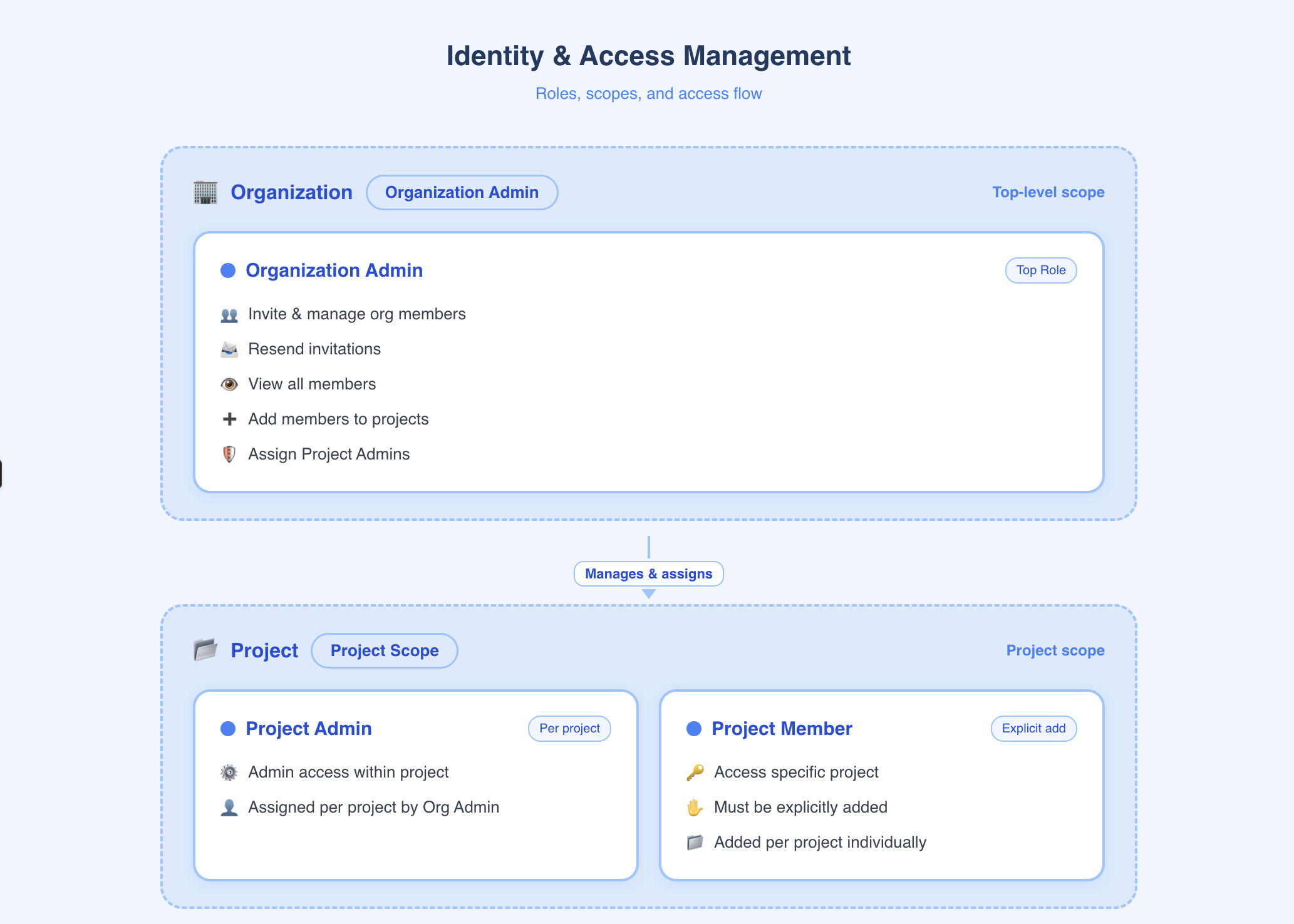
Use this flow to bring someone into your organization so they can later be assigned to projects.
### Send an Invite
1. Go to `Management` → `Teams`.
2. Enter the user's email address in the invite field.
3. Click `Send Invite`.
## Invite Users to Your Organization
Use this flow to bring someone into your organization so they can later be assigned to projects.
### Send an Invite
1. Go to `Management` → `Teams`.
2. Enter the user's email address in the invite field.
3. Click `Send Invite`.
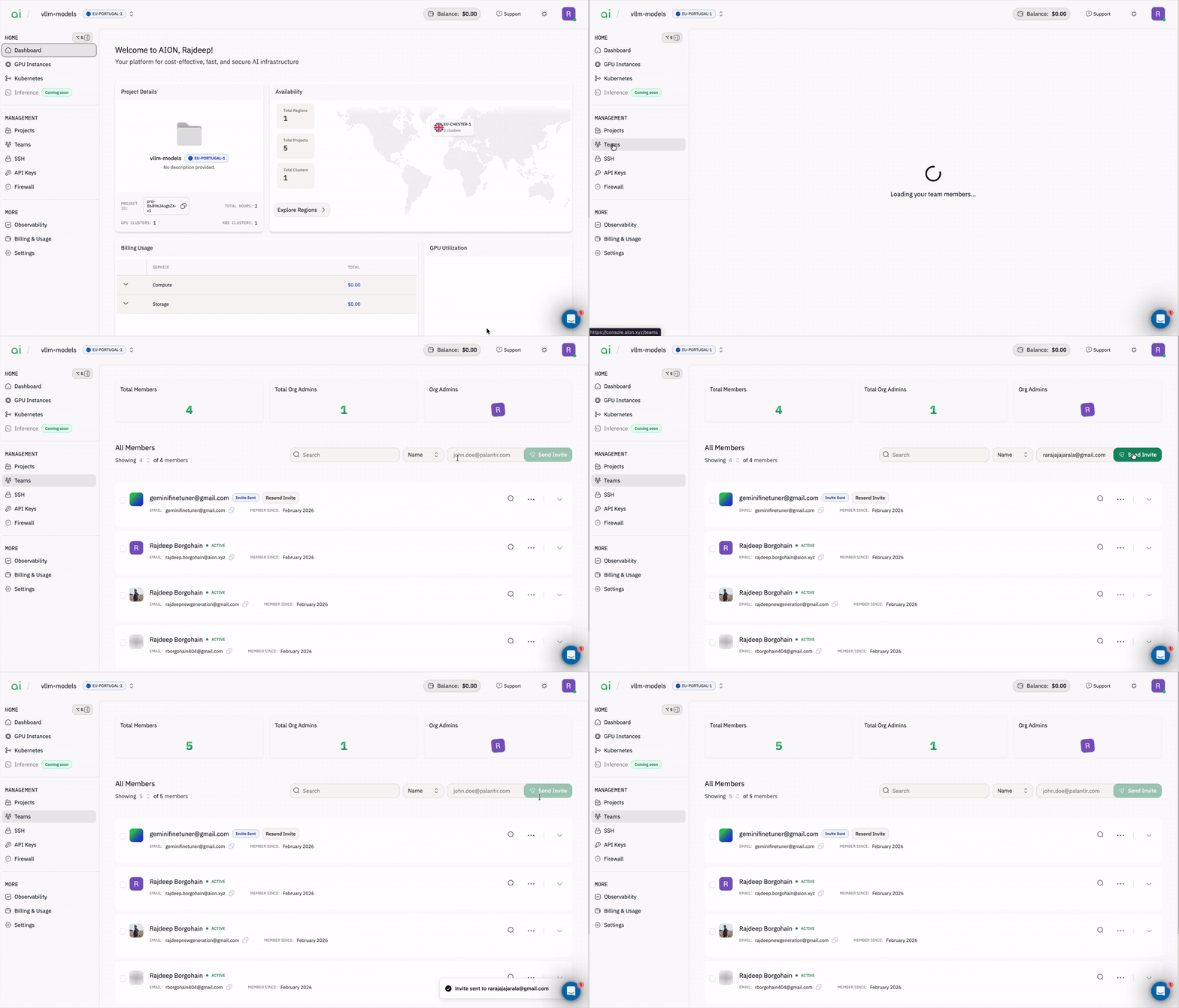 The user will receive an invitation email and appear in All Members with a status of Invite Sent until they accept.
### Resend an Invite
Use this when a user didn't receive the invitation email or the invite link has expired.
1. Go to `Management` → `Teams`.
2. Find the user with status Invite Sent.
3. Click `Resend Invite`.
The user will receive an invitation email and appear in All Members with a status of Invite Sent until they accept.
### Resend an Invite
Use this when a user didn't receive the invitation email or the invite link has expired.
1. Go to `Management` → `Teams`.
2. Find the user with status Invite Sent.
3. Click `Resend Invite`.
 ## Manage Project Access
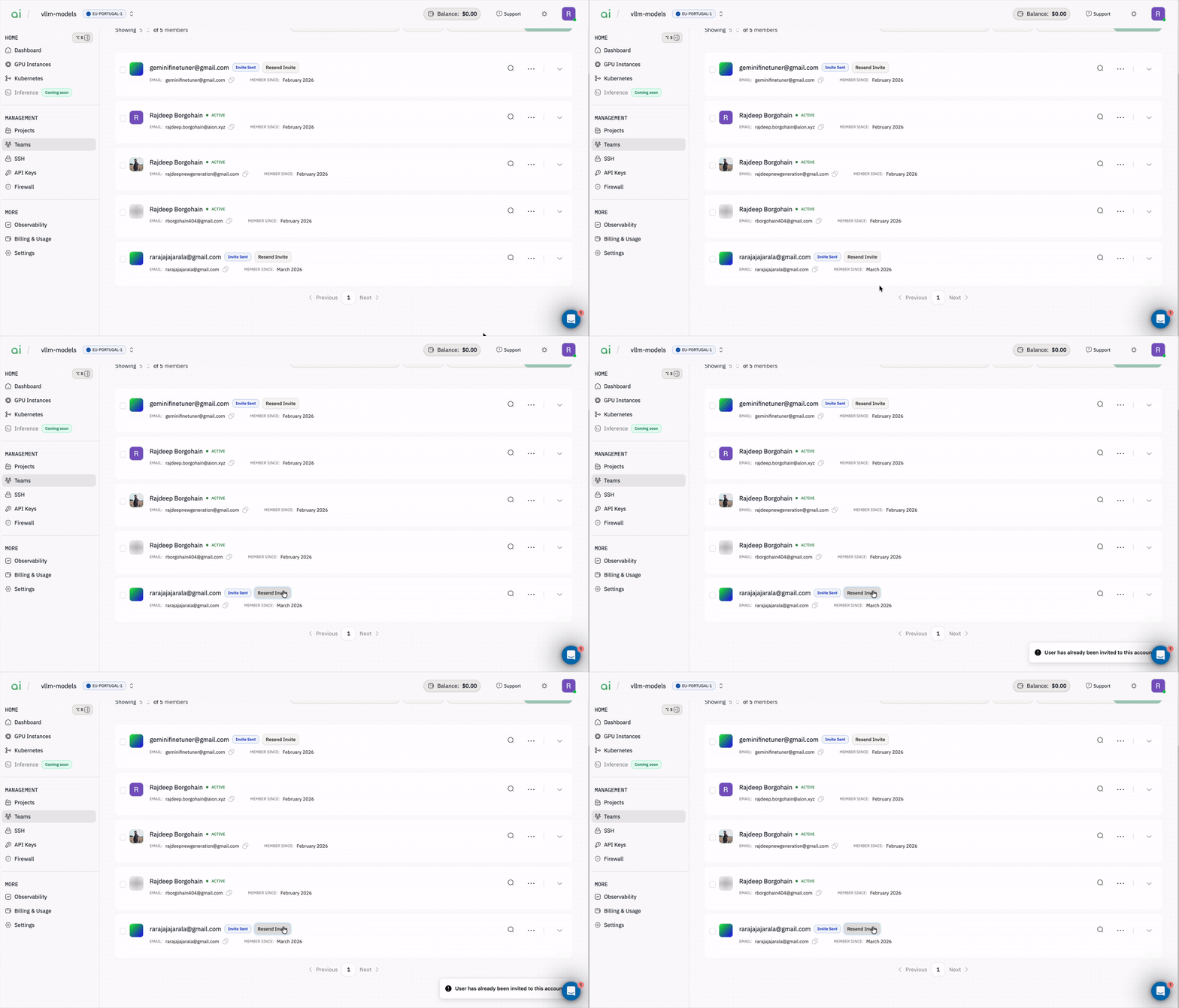
Before adding anyone to a project, make sure they have an `Active` account, users with a pending invite won't appear in the search results.
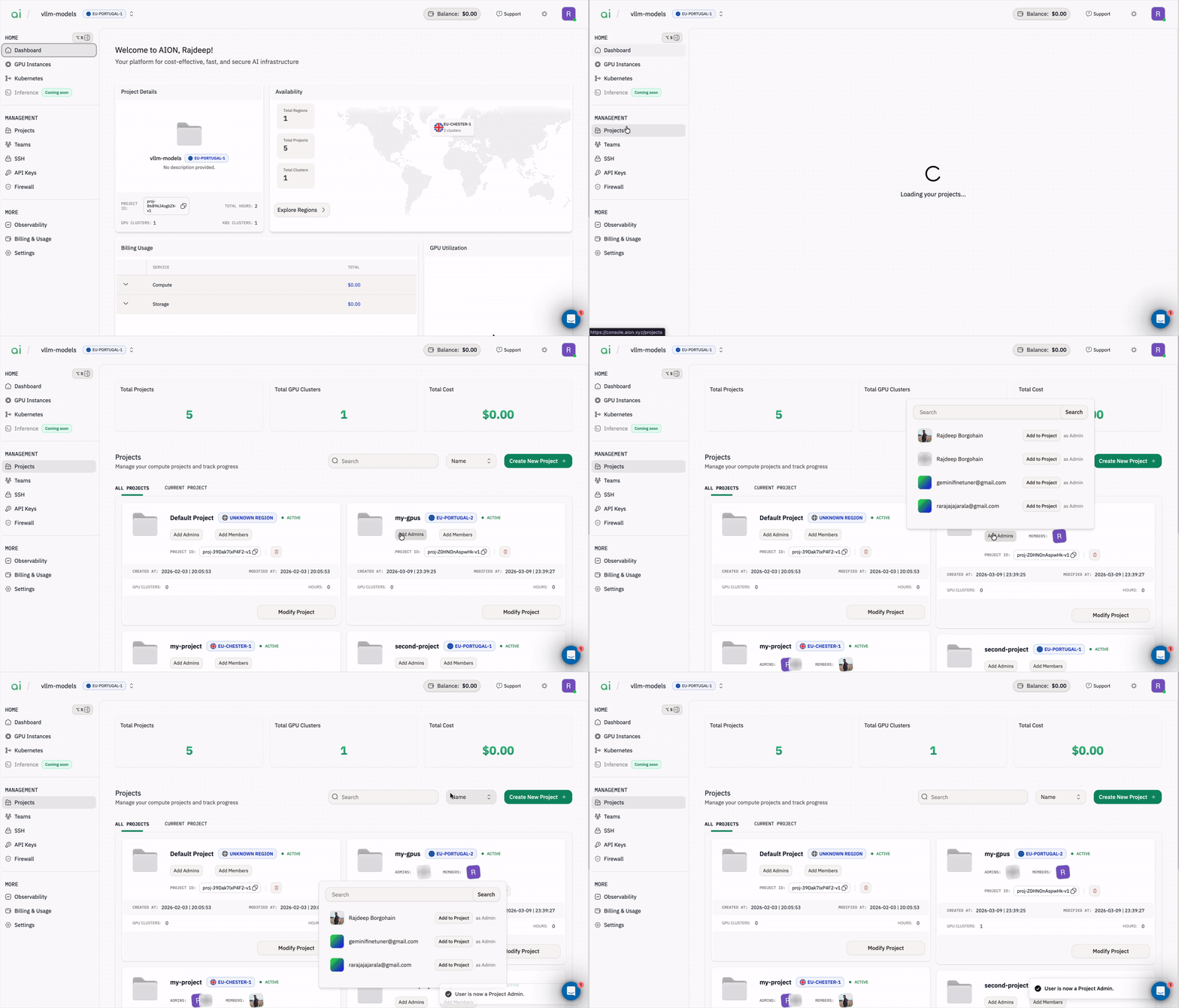
### Add a Project Admin
1. Go to `Management → Projects`.
2. Find the project card and click `Add Admins`.
3. In the modal, search for the user.
4. Click `Add to Project` next to the correct user.
The user is now a `Project Admin` for that project.
## Manage Project Access
Before adding anyone to a project, make sure they have an `Active` account, users with a pending invite won't appear in the search results.
### Add a Project Admin
1. Go to `Management → Projects`.
2. Find the project card and click `Add Admins`.
3. In the modal, search for the user.
4. Click `Add to Project` next to the correct user.
The user is now a `Project Admin` for that project.
 ### Add a Member to a Project
1. Go to `Management` → `Projects`.
2. Find the project card and click `Add Members`.
3. In the modal, search for the user.
4. Click `Add to Project` next to the correct user.
The user is now a `Member` of that project.
### Add a Member to a Project
1. Go to `Management` → `Projects`.
2. Find the project card and click `Add Members`.
3. In the modal, search for the user.
4. Click `Add to Project` next to the correct user.
The user is now a `Member` of that project.