> ## Documentation Index
> Fetch the complete documentation index at: https://docs.aion.xyz/llms.txt
> Use this file to discover all available pages before exploring further.
# Create and Manage Your API Keys
> Generate API keys for programmatic access, copy them once at creation, and manage or delete keys from the AION console.
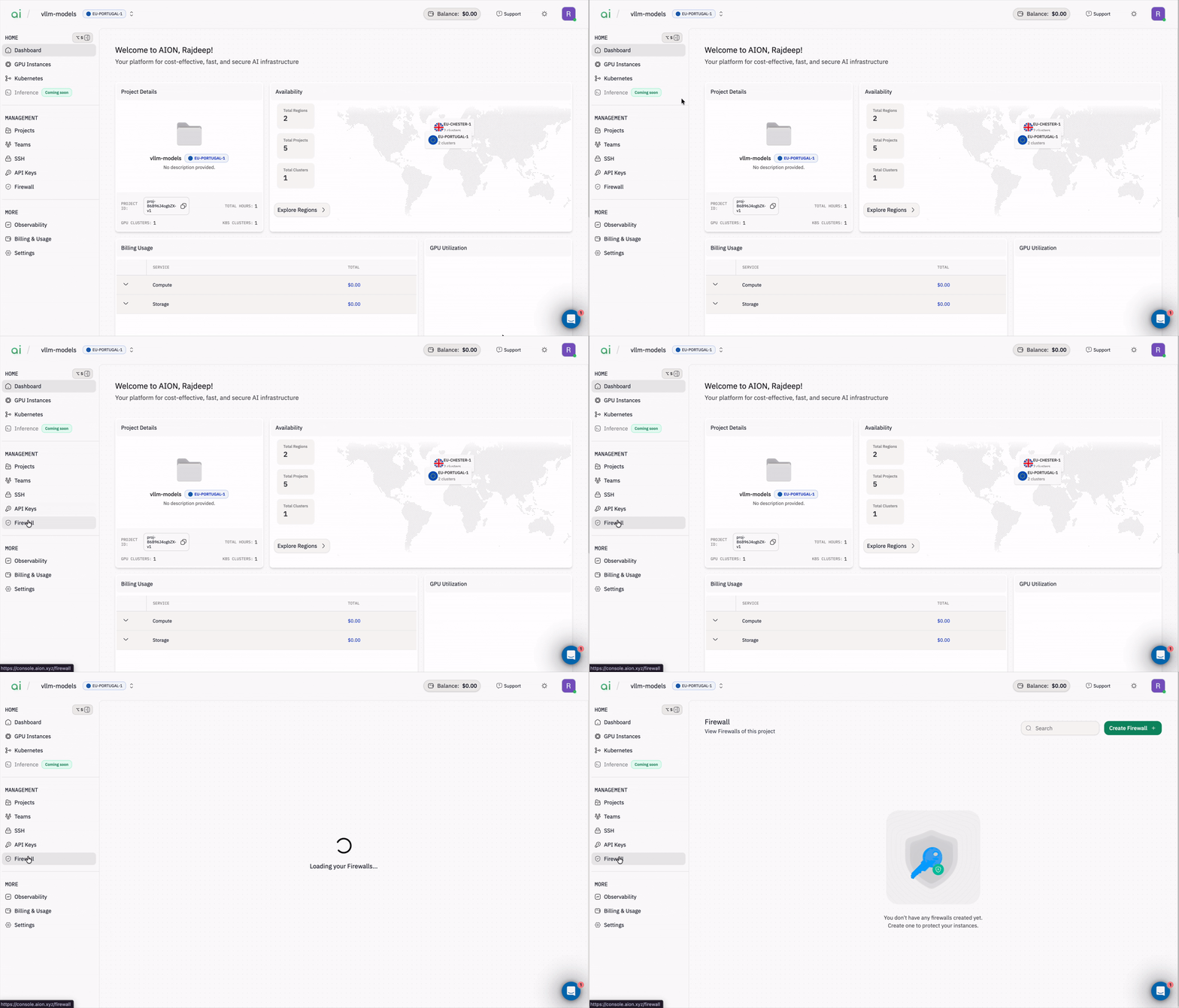
#### Step 1: Open the API Keys page
In the left sidebar, navigate to `Management → API Keys`. API keys let you authenticate programmatic requests to AION services.
 #### Step 2: Start adding a new API key
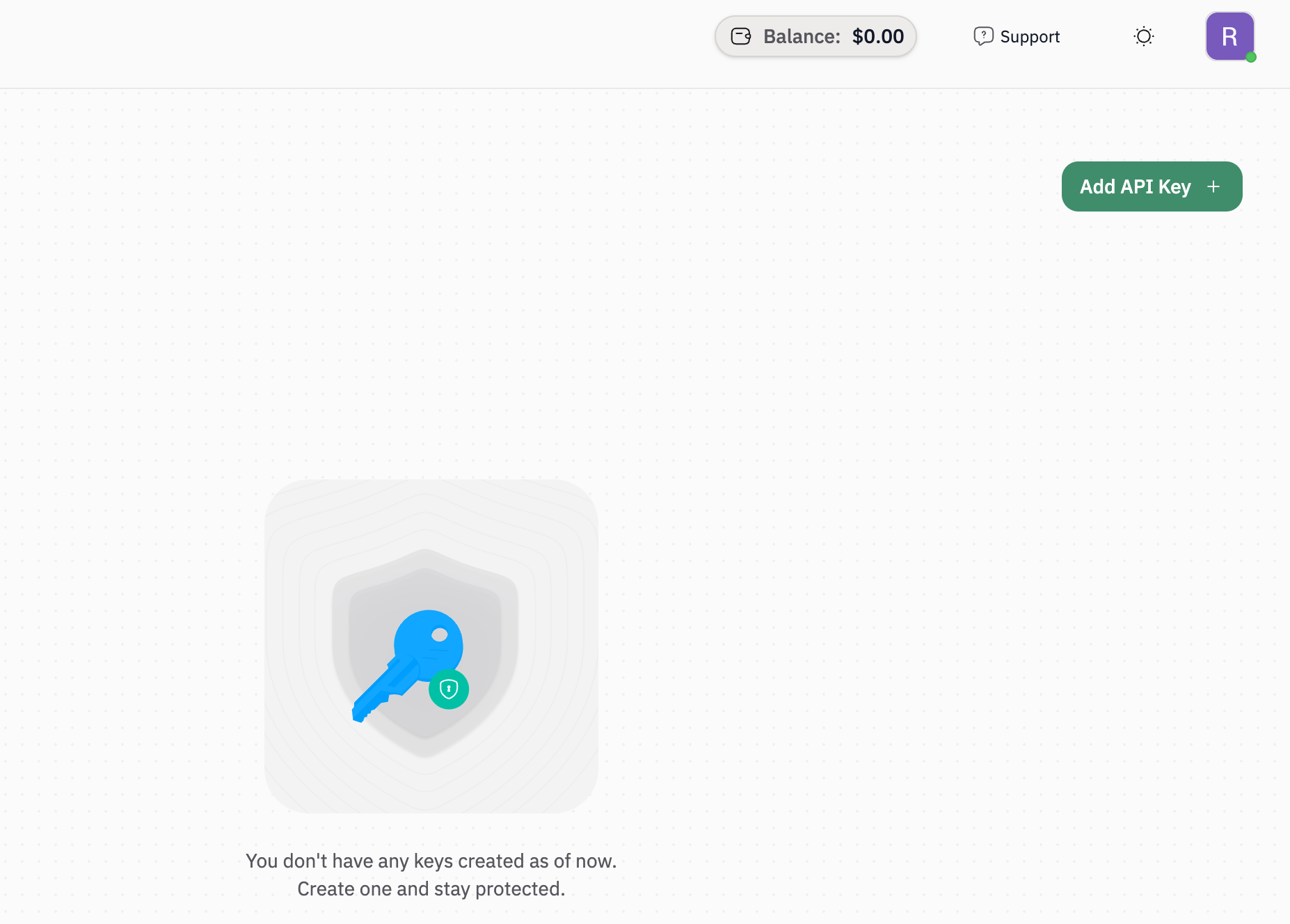
Click the green `Add API Key +` button (top-right).
#### Step 2: Start adding a new API key
Click the green `Add API Key +` button (top-right).
 #### Step 3: Name and create the key
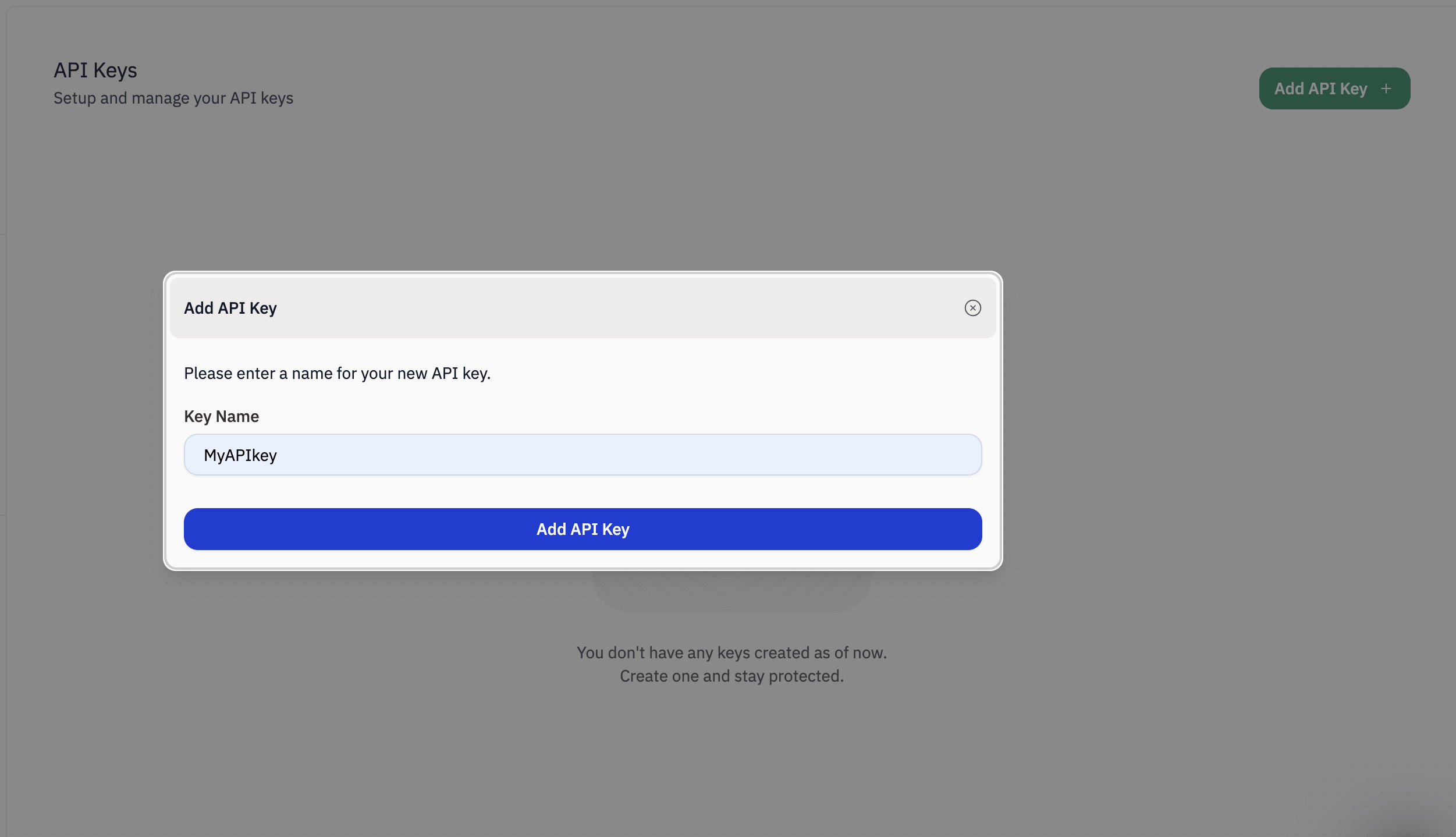
In the `Add API Key` dialog:
1. Enter a recognizable `Key Name` (example: `MyAPIkey` or `prod-ci-key`).
2. Click `Add API Key`.
#### Step 3: Name and create the key
In the `Add API Key` dialog:
1. Enter a recognizable `Key Name` (example: `MyAPIkey` or `prod-ci-key`).
2. Click `Add API Key`.
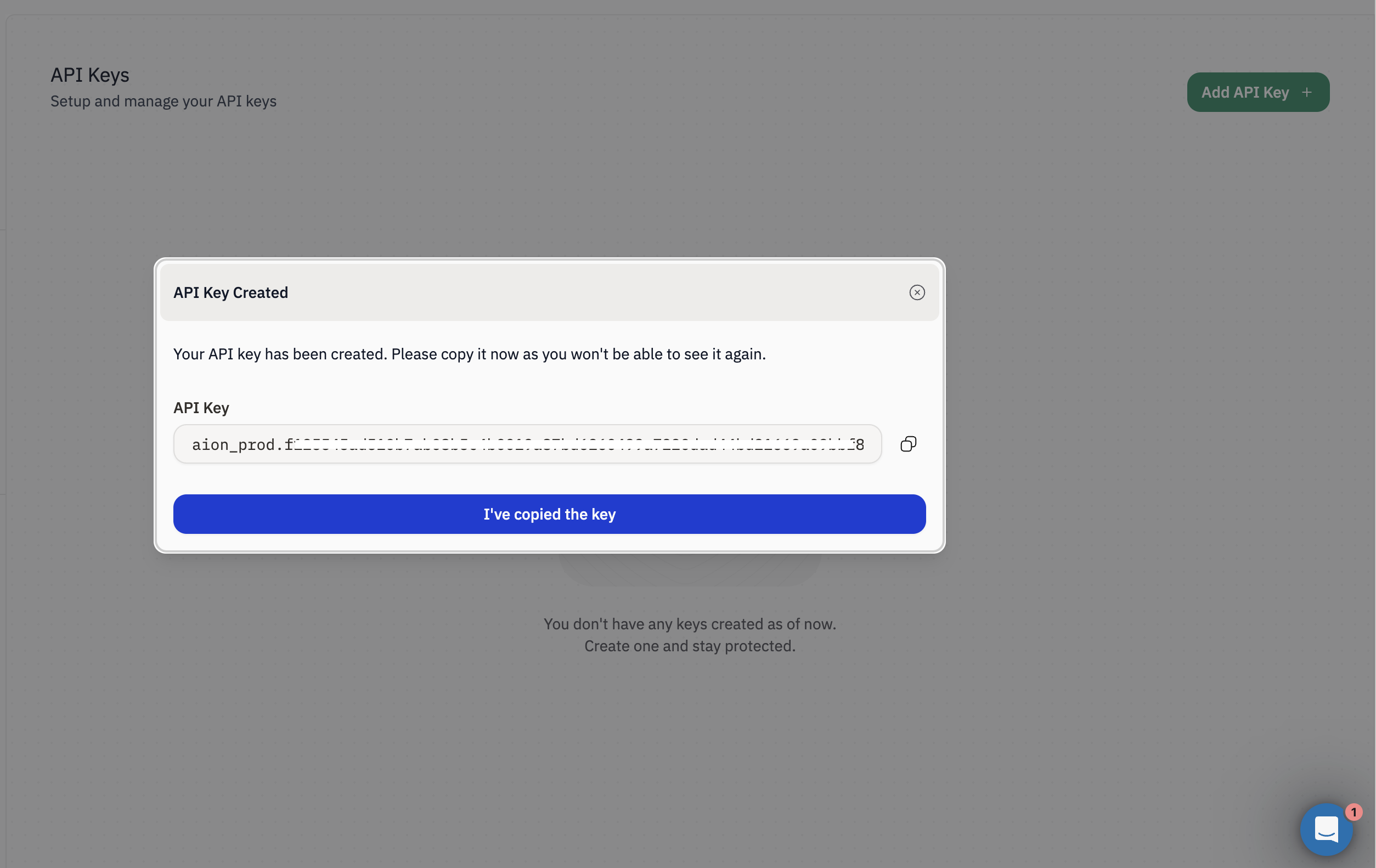
 #### Step 4: Copy the API key (you can only view it once)
After creation, you’ll see the `API Key Created` dialog with your new key displayed.
1. Click the copy icon to copy the full API key.
2. Click `I've copied the key` to close the dialog.
> `Important:` You **won’t be able to see this API key again** after closing the dialog.
>
> Store it securely (for example, in a password manager or a secrets manager).
#### Step 4: Copy the API key (you can only view it once)
After creation, you’ll see the `API Key Created` dialog with your new key displayed.
1. Click the copy icon to copy the full API key.
2. Click `I've copied the key` to close the dialog.
> `Important:` You **won’t be able to see this API key again** after closing the dialog.
>
> Store it securely (for example, in a password manager or a secrets manager).
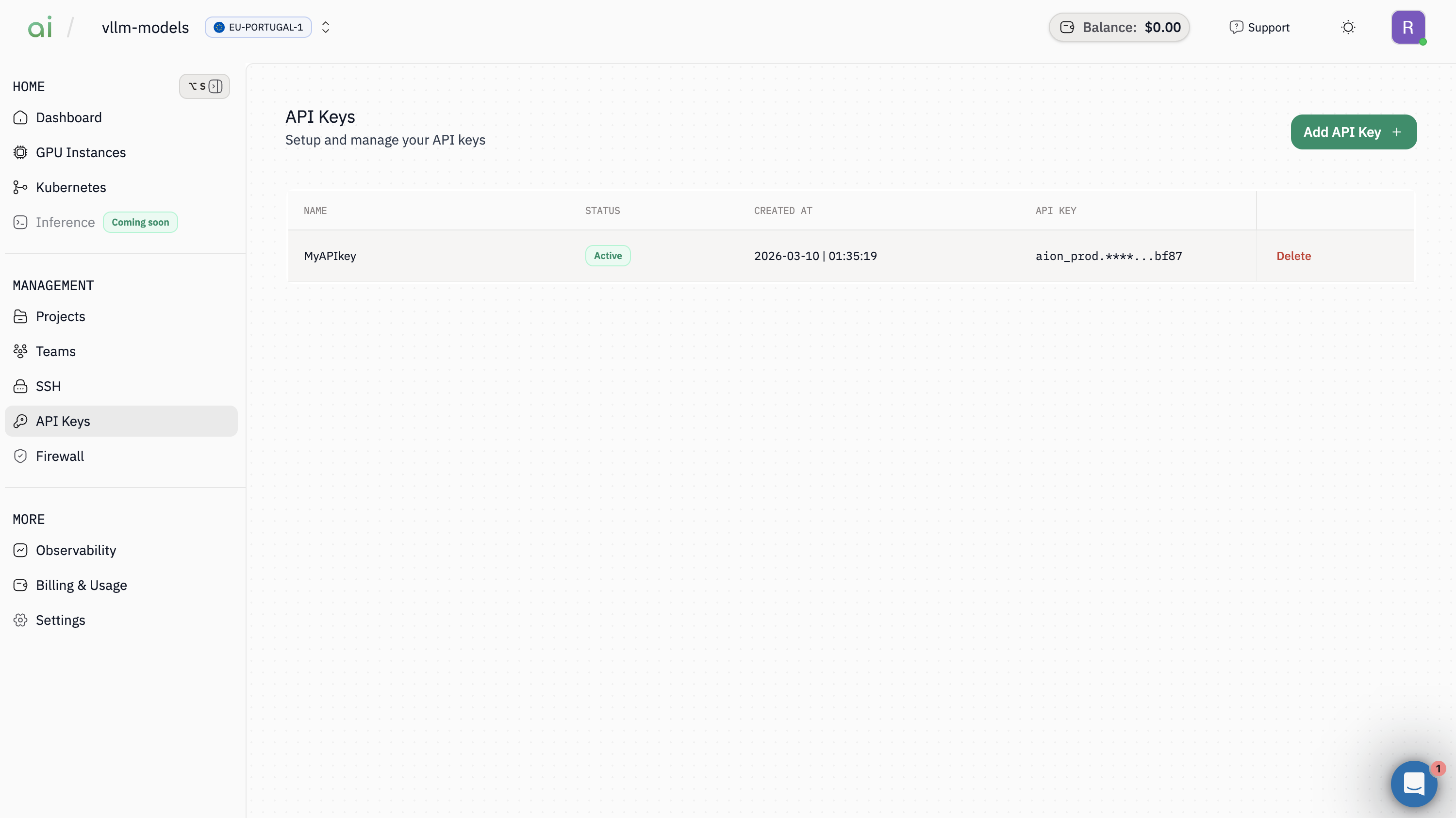
 #### Step 5: Verify the key is added
Back on the API Keys page, your key appears in the list with:
* `Name`
* `Status` (example: `Active`)
* `Created At`
* `API Key` (partially masked)
#### Step 5: Verify the key is added
Back on the API Keys page, your key appears in the list with:
* `Name`
* `Status` (example: `Active`)
* `Created At`
* `API Key` (partially masked)
 #### Optional: Delete an API key
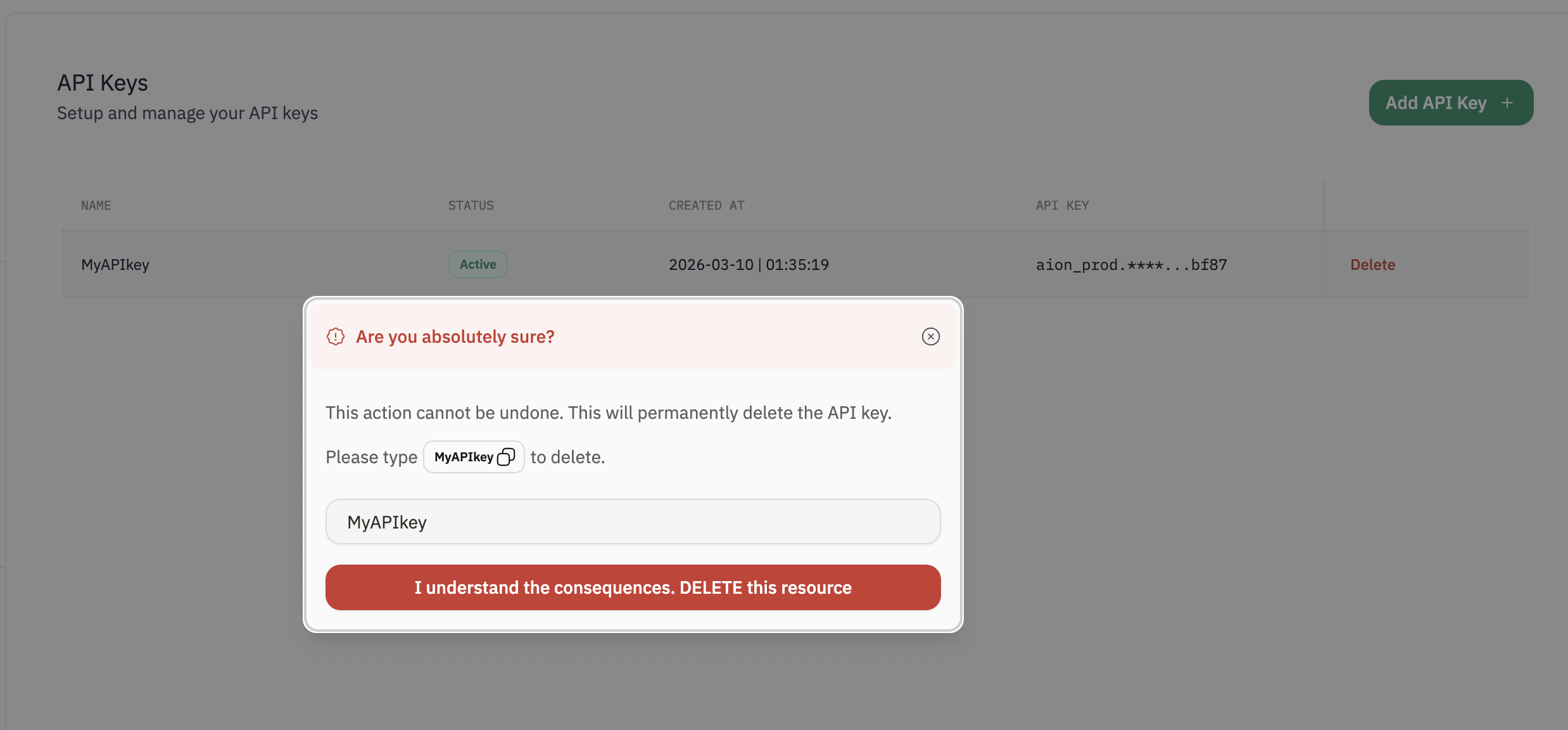
> `Warning:` Deleting an API key is permanent and cannot be undone. Any services using this key will immediately lose access.
1. In the API Keys list, click `Delete` on the key you want to remove.
2. In the confirmation dialog, type the exact key name shown.
3. Click `I understand the consequences. DELETE this resource`.
#### Optional: Delete an API key
> `Warning:` Deleting an API key is permanent and cannot be undone. Any services using this key will immediately lose access.
1. In the API Keys list, click `Delete` on the key you want to remove.
2. In the confirmation dialog, type the exact key name shown.
3. Click `I understand the consequences. DELETE this resource`.