> ## Documentation Index
> Fetch the complete documentation index at: https://docs.aion.xyz/llms.txt
> Use this file to discover all available pages before exploring further.
# Serve Stable Diffusion using Ray
Deploy a GPU-backed Kubernetes cluster on AION, install NVIDIA GPU Operator + KubeRay Operator + Ray Cluster from Marketplace, then apply the RayService Stable Diffusion example and validate it by port-forwarding and sending a request.
## Step 1: Create a Kubernetes cluster with GPUs
1. In the left navigation, click **Kubernetes**.
2. Click **Create K8s Cluster**.
3. **Select a region** with GPU availability that fits your needs.
4. **Create or select a project**.
5. **Configure the cluster** (cluster name, nodes, image, SSH key, version, etc.).
6. Click **Launch** and wait until the cluster status is ready/active.
7. Copy **KubeConfig** from the cluster card/details and setup the kubeconfig file.
> Recommended: Have at least one GPU-capable node available for Stable Diffusion serving.
## Step 2: Install required Marketplace apps
Go to **Kubernetes → Marketplace** and install, in this order:
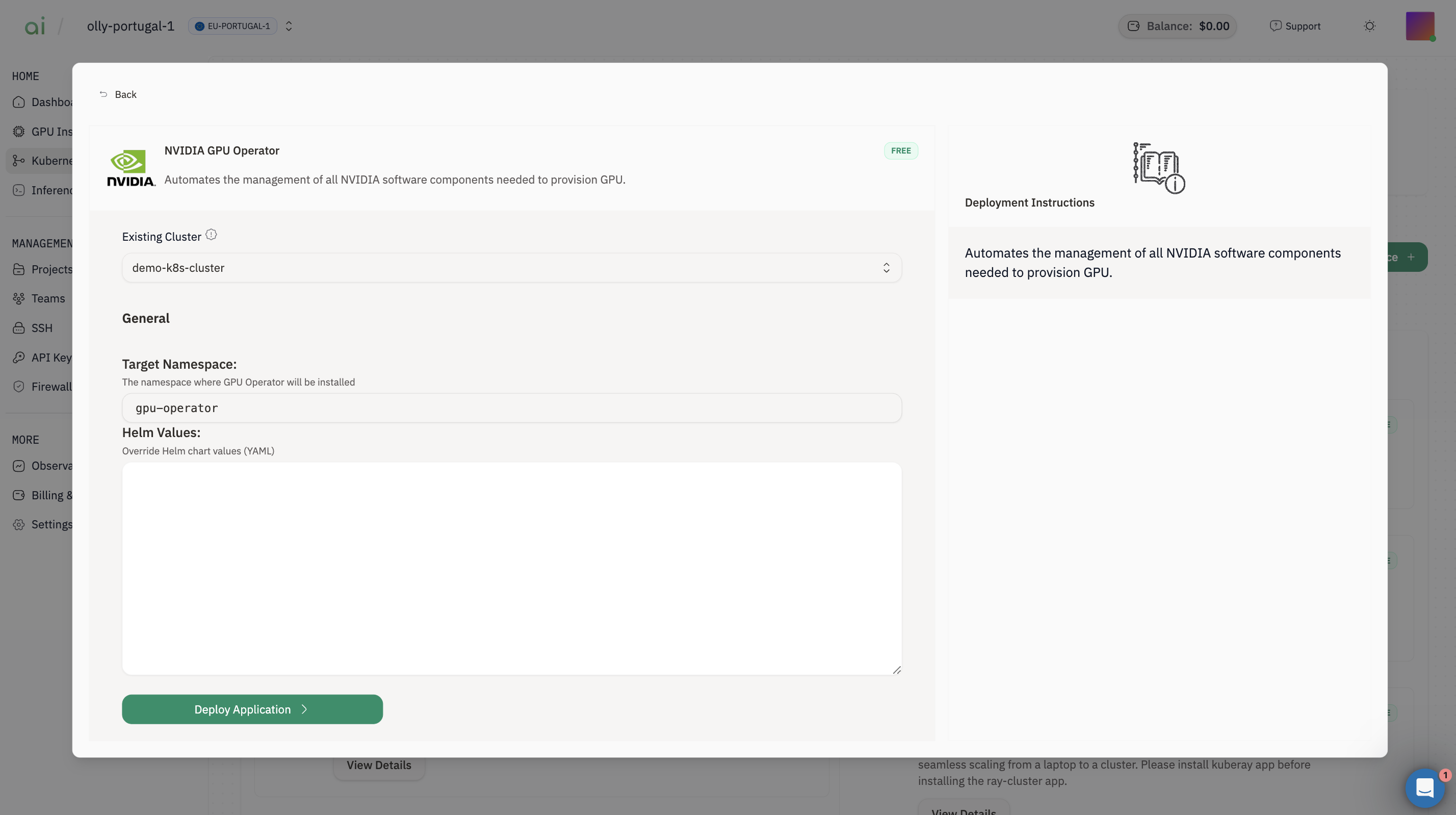
### 2.1 Install NVIDIA GPU Operator
1. Open **NVIDIA GPU Operator** → **View Details**
2. Choose **Existing Cluster** = your cluster
3. Click **Deploy Application**
 Verify:
```bash theme={null}
kubectl get pods -n gpu-operator
```
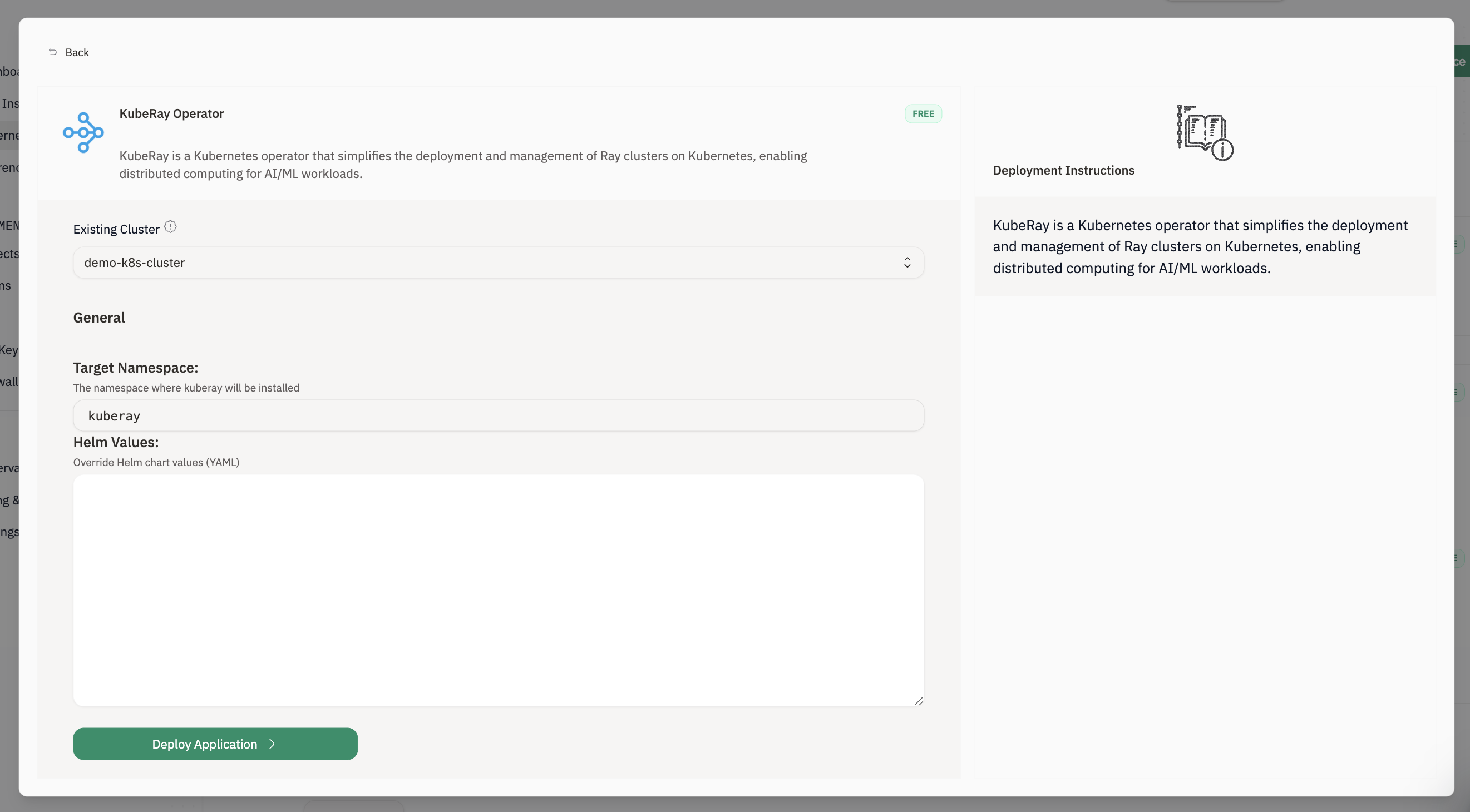
### 2.2 Install KubeRay Operator
1. Open **KubeRay Operator** → **View Details**
2. Choose **Existing Cluster**
3. Click **Deploy Application**
Verify:
```bash theme={null}
kubectl get pods -n gpu-operator
```
### 2.2 Install KubeRay Operator
1. Open **KubeRay Operator** → **View Details**
2. Choose **Existing Cluster**
3. Click **Deploy Application**
 Verify CRDs:
```bash theme={null}
kubectl get crd | grep ray
```
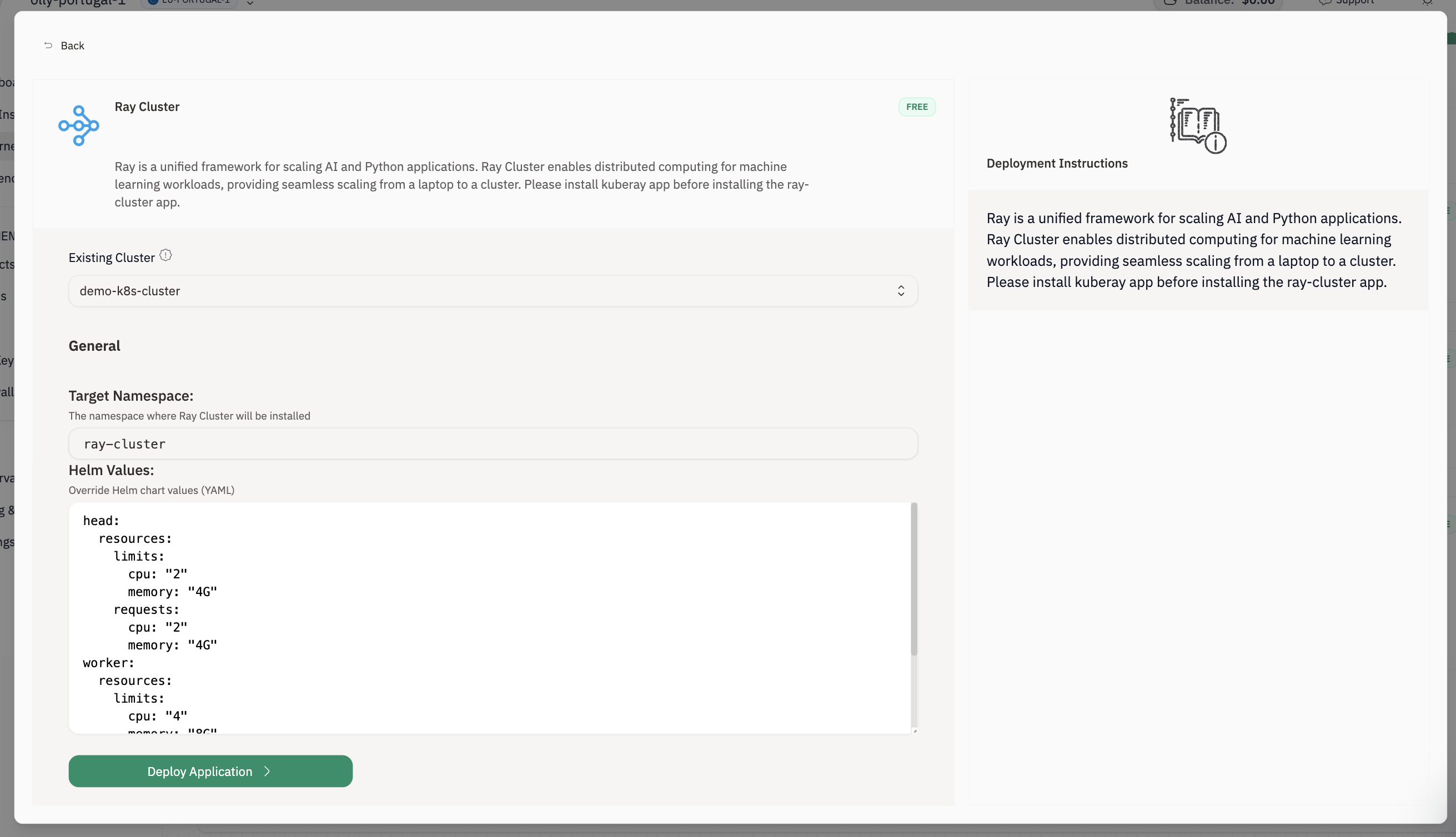
### 2.3 Install Ray Cluster
1. Open **Ray Cluster** → **View Details**
2. Choose **Existing Cluster**
3. Click **Deploy Application**
Verify CRDs:
```bash theme={null}
kubectl get crd | grep ray
```
### 2.3 Install Ray Cluster
1. Open **Ray Cluster** → **View Details**
2. Choose **Existing Cluster**
3. Click **Deploy Application**
 Verify Ray is present:
```bash theme={null}
kubectl get ray-cluster -A
kubectl get pods -A | grep -i ray
```
## Step 3: Install the Stable Diffusion RayService
Apply the example RayService manifest:
```bash theme={null}
kubectl apply -f https://raw.githubusercontent.com/ray-project/kuberay/master/ray-operator/config/samples/ray-service.stable-diffusion.yaml
```
Check the RayService:
```bash theme={null}
kubectl get rayservices -A
kubectl describe rayservices.ray.io stable-diffusion
```
Wait until the RayService **Ready** condition becomes `True`.
## Step 3: Forward the Serve port
First, find the service:
```bash theme={null}
kubectl get services
```
Then port-forward the serve service:
```bash theme={null}
kubectl port-forward svc/stable-diffusion-serve-svc 8000
```
Keep this terminal running.
## Step 4: Run the Gradio client
Download the request script
```bash theme={null}
curl -L -o diffusion-run.py "https://gist.githubusercontent.com/rb-aion/f01e3abecaae3346fd3ef94122ea0caf/raw/5f46b75360c262963a535f6fbd954a56f2055592/diffusion-run.py"
```
Install dependencies
```
python -m pip install --upgrade pip
python -m pip install gradio requests
```
Start the app
```
python diffusion-run.py
```
Gradio will print a local URL (typically [http://127.0.0.1:7860](http://127.0.0.1:7860)). Open it in your browser to generate images.
Verify Ray is present:
```bash theme={null}
kubectl get ray-cluster -A
kubectl get pods -A | grep -i ray
```
## Step 3: Install the Stable Diffusion RayService
Apply the example RayService manifest:
```bash theme={null}
kubectl apply -f https://raw.githubusercontent.com/ray-project/kuberay/master/ray-operator/config/samples/ray-service.stable-diffusion.yaml
```
Check the RayService:
```bash theme={null}
kubectl get rayservices -A
kubectl describe rayservices.ray.io stable-diffusion
```
Wait until the RayService **Ready** condition becomes `True`.
## Step 3: Forward the Serve port
First, find the service:
```bash theme={null}
kubectl get services
```
Then port-forward the serve service:
```bash theme={null}
kubectl port-forward svc/stable-diffusion-serve-svc 8000
```
Keep this terminal running.
## Step 4: Run the Gradio client
Download the request script
```bash theme={null}
curl -L -o diffusion-run.py "https://gist.githubusercontent.com/rb-aion/f01e3abecaae3346fd3ef94122ea0caf/raw/5f46b75360c262963a535f6fbd954a56f2055592/diffusion-run.py"
```
Install dependencies
```
python -m pip install --upgrade pip
python -m pip install gradio requests
```
Start the app
```
python diffusion-run.py
```
Gradio will print a local URL (typically [http://127.0.0.1:7860](http://127.0.0.1:7860)). Open it in your browser to generate images.